3. Check if Developer Options is Enabled
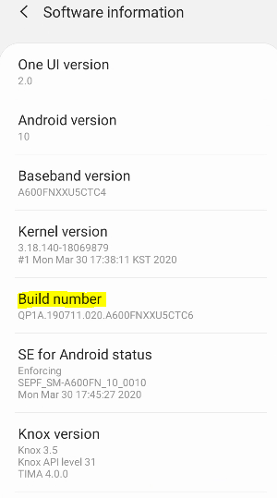
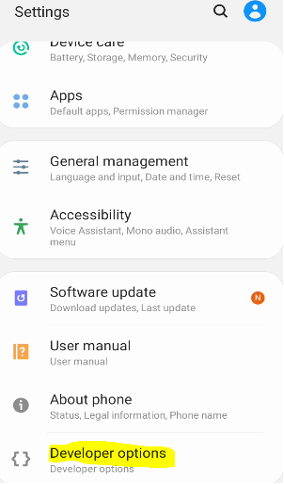
Enable Developer Options – Samsung
If Developer options is not visible yet, complete Enable Developer Options first.
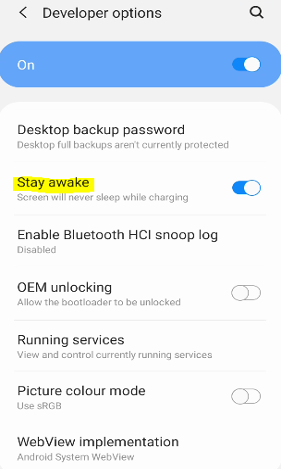
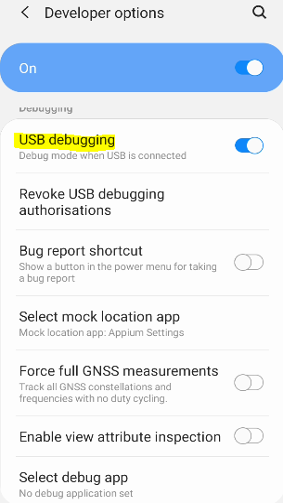
Go to Settings → Developer options and make sure the following options are set:
- Developer options – ON
- Stay awake – ON
- USB Debugging – ON
- Disable ADB authorization timeout – ON
With Android 11+, the system disables ADB authorization after 7 days if the device isn’t reconnected. Enabling this option prevents that timeout.
Note: You will see the following dialog when you connect your device to a PC for the first time:
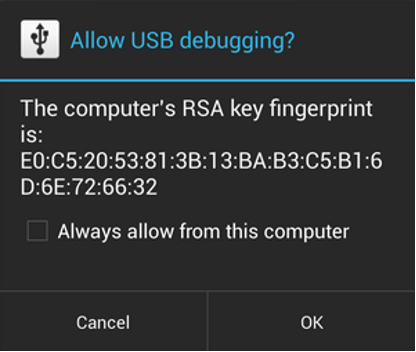
Click "Always allow from this computer" and press OK to allow USB debugging.
If you accidentally click Cancel, unplug and replug the device to trigger the dialog again.
TIP: QATF’s Automatic Device Discovery requires the phone to be authorized the first time it’s connected. If the device isn’t shown in the UI, reconnect it.