Phone Preparation
Phone Preparation automatically applies the required device settings so a newly connected phone can be used in TEO.
Follow this order when you are connecting a phone to the Test Node for the first time.
First-time connection order
1) Prepare the computer and cable
- Make sure the Test Node computer is powered on and online in TEO.
- Use a data-capable USB cable, not a charge-only cable.
- If a USB hub is used, connect the phone through the hub that belongs to the Test Node.
- Keep the phone physically near you; several confirmation prompts must be accepted on the phone screen.
2) Connect the phone
- Unlock the phone.
- Connect the phone to the Test Node computer by USB.
- Keep the phone unlocked during setup.
- If the phone asks whether to trust or allow the computer, accept the prompt.
For iPhone, tap Trust This Computer and enter the device passcode if requested.
For Android, the Allow USB debugging prompt may appear later, after USB debugging is enabled. When it appears, select Always allow from this computer and tap OK.
3) Enable developer access
Use the guide for the device model:
- Samsung: Enable Developer Options
- Xiaomi: Enable Developer Options
- Pixel: Enable Developer Options
- iOS: Enable Developer Mode
For Xiaomi, insert an active SIM card and sign in with a Xiaomi account before enabling USB Debugging (Security Settings).
For iOS, Developer Mode may only appear after the iPhone has been connected to and trusted by the Mac.
4) Confirm the required developer settings
After Developer Options or Developer Mode is available, verify the required settings:
- Samsung: Check if Developer Options is Enabled
- Xiaomi: Check if Developer Options is Enabled
- Pixel: Check if Developer Options is Enabled
- iOS: Check that Developer Mode is enabled
5) Wait for the Mobile ID
- Open the TEO Web UI.
- Go to Mobile ID's.
- Wait until the connected phone appears in the list.
- If it does not appear, unlock the phone, reconnect the cable, and check the trust or USB debugging prompt again.
6) Run Prepare from the Web UI
- Go to Mobile ID's.
- Select the newly connected phone.
- Click Actions → Prepare.
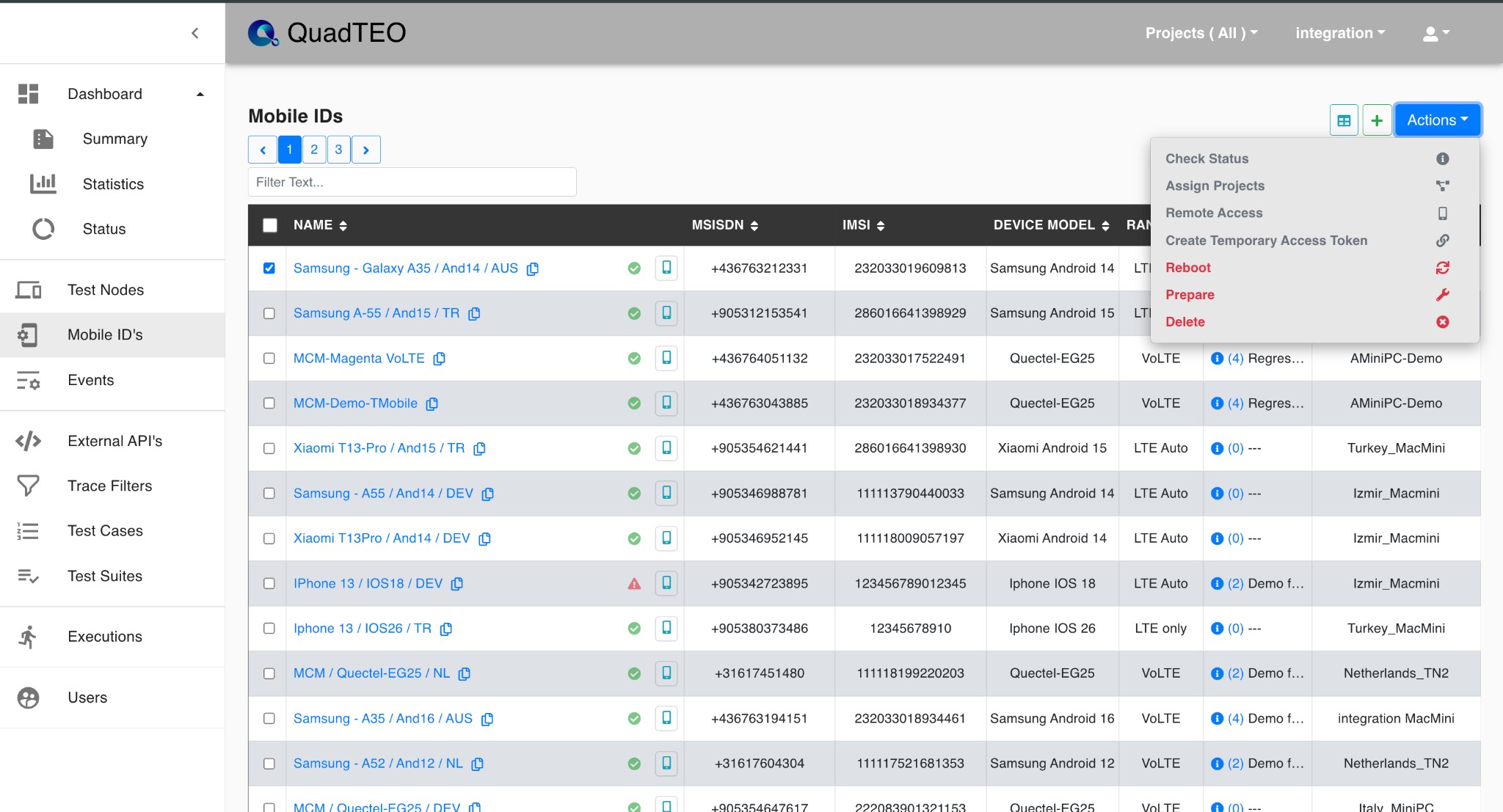
After you run Prepare, TEO will apply the required device settings automatically to make the phone ready for use.
If the phone is not visible
- Confirm that the Test Node is online.
- Try a different data-capable USB cable.
- Keep the phone unlocked and reconnect it.
- On Android, check that USB debugging is enabled and the Allow USB debugging prompt was accepted.
- On iPhone, check that Trust This Computer was accepted and Developer Mode is enabled.
- On Xiaomi, confirm that a SIM card is inserted and the Xiaomi account is signed in.
If an error occurs
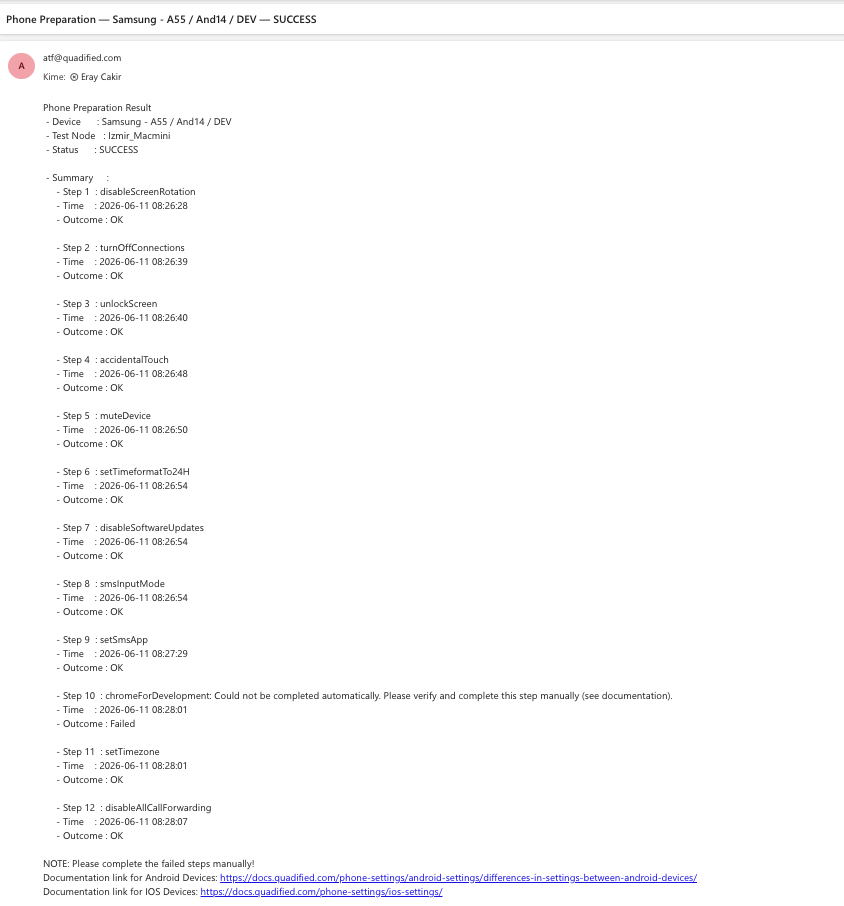
If Phone Preparation fails while applying a specific setting, TEO sends an email to the email address of the currently logged-in user.
The email includes which step(s) failed and indicates that you should complete those steps manually.
Example email: