Xiaomi device preparation
This section details the preparation steps required for Xiaomi Android devices before automated testing.
Menu names differ between MIUI 14 (Android 13) and Xiaomi HyperOS (Android 14 and later); where they differ, both are given. The Samsung-only steps (software update service, SMS input mode) do not apply to Xiaomi. Automatic system updates are turned off by hand in step 14.
Checklist
Before Prepare, by hand:
- Insert an active SIM card and sign in with a Xiaomi account.
- Enable Developer Options, then turn on USB debugging, USB debugging (Security settings), Install via USB, Keep screen on, Skip screen lock and Disable adb authorization timeout (step 3).
- Turn off the screen lock: Prepare does not change it.
- Turn off Automatic system updates.
Connect the phone to the Test Node, accept Allow USB debugging, and complete its Mobile ID on the Mobile ID's page: a descriptive name and the real MSISDN, National Format, IMSI and IMEI (Phone Preparation).
Run Prepare from the Mobile ID's page (Phone Preparation). It applies the steps marked Done by Prepare below and emails you the result of each step.
After Prepare, by hand:
- Erase the remaining call forwarding with
##002#(Disable Call Forwarding Settings). - Do any step that the Prepare email lists as failed: each step marked Done by Prepare has a Set it by hand section for this.
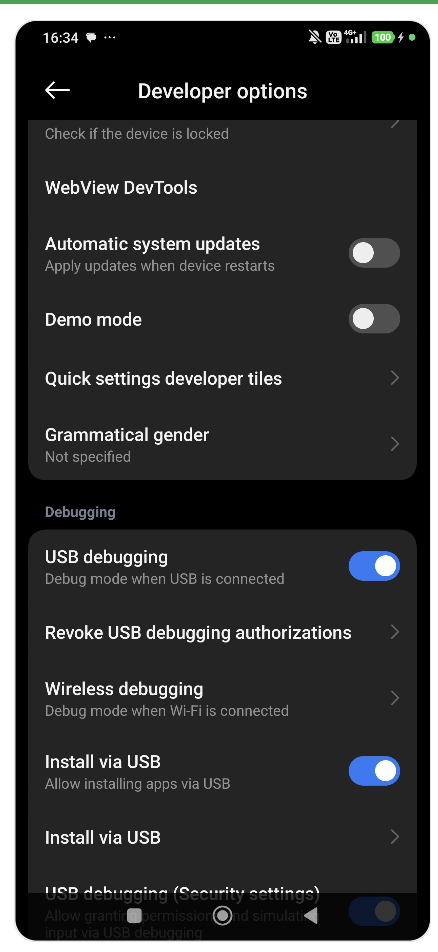
Printable checklists for all brands (PDF)
1. Unlock Screen
Manual step
Prepare does not change this setting. Set it by hand.
- Open Settings.
- Tap Fingerprints, face data, and screen lock (MIUI 14: Passwords & security).
- Tap Screen lock.
- Select Turn off screen lock.
2. Enable Developer Options
Manual step
Prepare does not change this setting. Set it by hand before you run Prepare.
Xiaomi prerequisites
Insert an active SIM card and sign in with a Xiaomi account before enabling USB debugging security settings. Xiaomi may require account or SMS verification before USB debugging (Security settings) can be enabled.
- Open Settings.
- Go to About phone.
- Tap OS version (MIUI 14: MIUI version) 7 times.
- Enter the device PIN, pattern, or password if prompted.
- Return to Settings.
- Go to Additional settings.
- Confirm that Developer options is now visible.
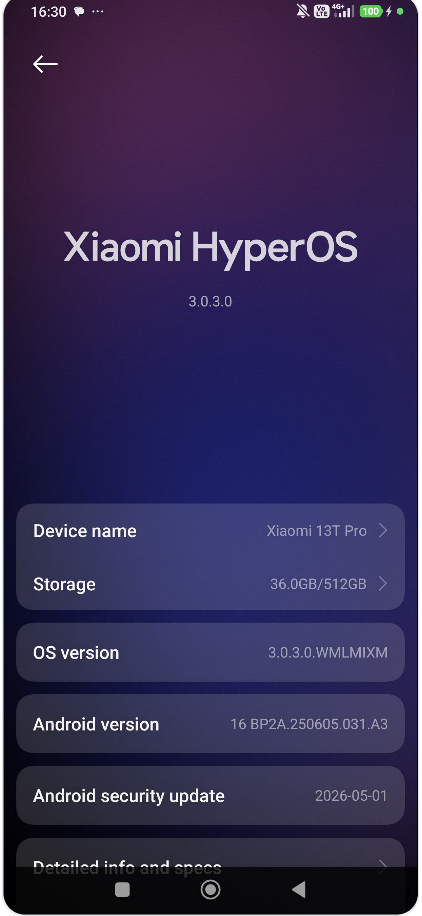
After Developer Options is visible, continue with Check if Developer Options is Enabled to enable USB debugging and the required Xiaomi-specific settings.
3. Check if Developer Options is Enabled
Manual step
Prepare does not change this setting. Set it by hand before you run Prepare.
Enabling USB Debugging in Xiaomi Devices
Xiaomi prerequisites
USB debugging (Security settings) may require SMS or account verification. Make sure a SIM card is inserted and the phone is signed in with a Xiaomi account.
If Developer options is not visible yet, complete Enable Developer Options first.
- Open Settings.
- Go to Additional settings → Developer options.
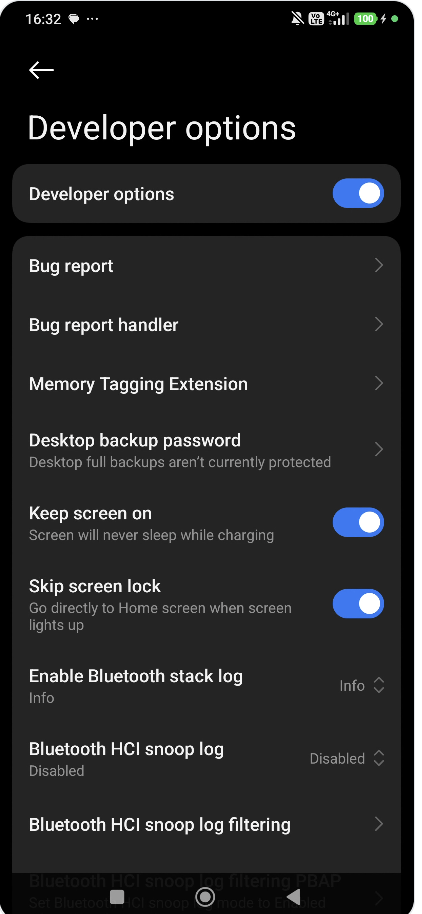
- Make sure Developer options is enabled.
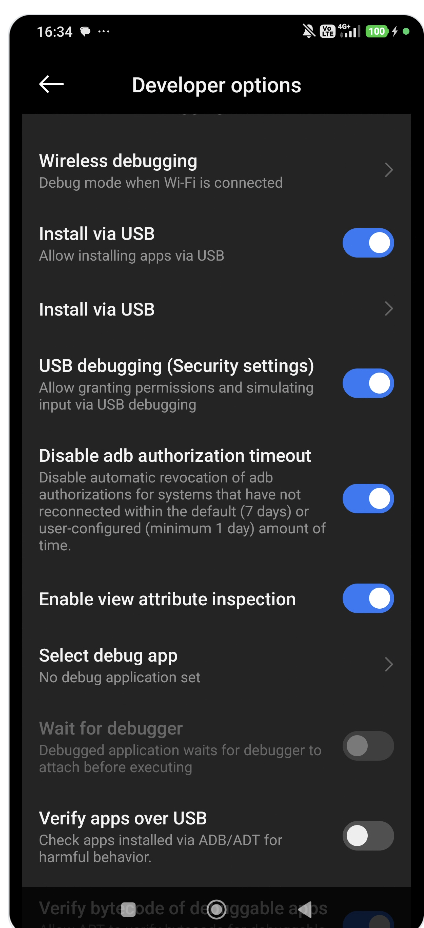
- In Developer options, ensure the following settings are enabled:
- Developer options – ON (the switch at the top)
- Keep screen on – ON ("Screen will never sleep while charging")
- Skip screen lock – ON ("Go directly to Home screen when screen lights up")
- USB debugging – ON
- Install via USB – ON ("Allow installing apps via USB"; the automation installs its helper apps this way)
- USB debugging (Security settings) – ON
- Disable adb authorization timeout – ON (prevents USB debugging access from expiring after 7 days without a connection)
4. Turn Off Connections
Done by Prepare
Prepare applies this setting automatically.
Set it by hand (only if Prepare reports this step as failed)
- Open Settings.
- Tap on Wi-Fi.
- Turn Wi-Fi off.
Prepare turns Wi-Fi off and airplane mode off on every Android phone. Test steps that need Wi-Fi switch it on themselves.
5. Airplane Mode
Done by Prepare
Prepare applies this setting automatically.
Set it by hand (only if Prepare reports this step as failed)
Airplane mode must be off.
- Swipe down to open Control center.
- Make sure Airplane mode is off.
6. Disable Screen Rotation
Done by Prepare
Prepare applies this setting automatically.
Set it by hand (only if Prepare reports this step as failed)
- Swipe down from the top-right corner to open Control center.
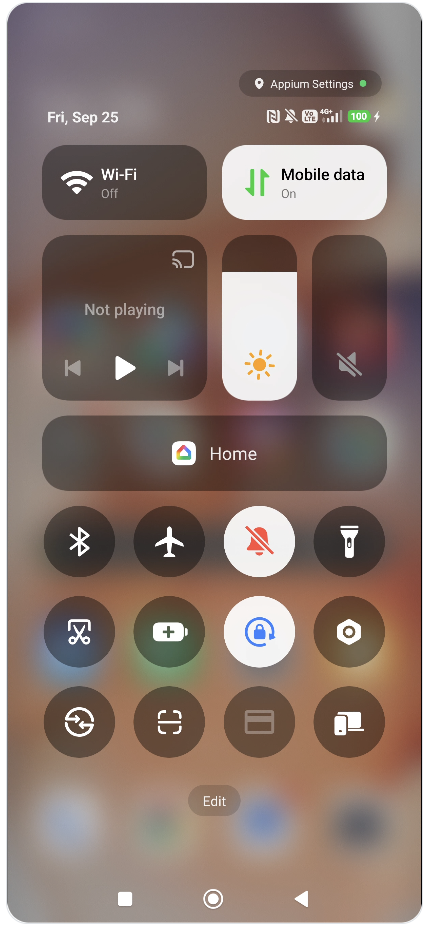
- Lock the screen orientation: the Lock orientation tile (a padlock with a circular arrow) must be on.
Prepare turns off the rotation switch in Settings > Additional settings > Accessibility > Physical.
7. Disable Accidental Touch Protection
Done by Prepare
Prepare applies this setting automatically.
Set it by hand (only if Prepare reports this step as failed)
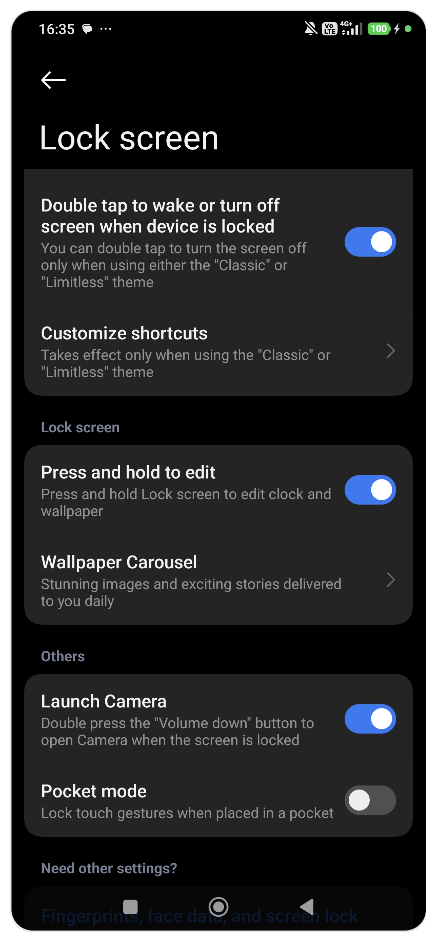
On Xiaomi phones this setting is called Pocket mode and must be turned off.
- Open Settings.
- Tap Lock screen.
- Turn off Pocket mode ("Lock touch gestures when placed in a pocket").
8. Mute Device
Done by Prepare
Prepare applies this setting automatically.
Set it by hand (only if Prepare reports this step as failed)
Turn on Silent mode: open Settings > Sound & vibration and turn on Silent mode, or use Control center.
In Xiaomi devices, the bell icon in Control center controls the sound profile:
| Icon | Mode Name | Description |
|---|---|---|
| 🔔 Bell | Sound | All sounds (media, ringtone, notifications) are active. |
| 🔕 Bell-off | Silent | All sounds (including ringtone and system) are muted. |
To mute the phone in Control center
- Swipe down from the top-right corner to open Control center.
- Tap the bell tile so that it shows a crossed-out bell (🔕, highlighted).
9. Set Time Format to 24 Hours
Done by Prepare
Prepare applies this setting automatically.
Set it by hand (only if Prepare reports this step as failed)
- Open Settings.
- Tap on Additional settings.
- Tap Date and time.
- Tap Time format and select 24-hour (13:00). On some versions this is a 24-hour switch: turn it on.
10. Set Timezone
Done by Prepare
Prepare applies this setting automatically.
Set it by hand (only if Prepare reports this step as failed)
To ensure consistent time representation across different test runs, it's important to set the device to use automatic date & time and timezone settings.
Steps
- Open Settings.
- Go to Additional settings.
- Tap on Date and time.
- Turn on Set time automatically and Set time zone automatically.
This ensures that the device's time settings are synchronized with network time, providing consistent timestamps for testing and logs.
11. Set SMS App
Done by Prepare
Prepare applies this setting automatically.
Set it by hand (only if Prepare reports this step as failed)
Google Messages – Required Settings for SMS/MMS Test Compatibility (Xiaomi Devices)
To ensure reliable SMS and MMS functionality during testing on Xiaomi devices using Google Messages, configure the following settings within the Google Messages app:
📩 Enable MMS Auto Download (Normal + Roaming)
- Open the Google Messages app.
- Tap the profile icon ➔ Messages settings ➔ Advanced.
- Enable:
- Auto-download MMS – ON
- Auto-download MMS when roaming – ON
💬 Turn Off RCS Chats (If Available)
Google Messages can send messages as RCS chats instead of SMS/MMS. RCS must be turned off to avoid conflicts with standard SMS/MMS testing.
- Open the Google Messages app.
- Tap the profile icon ➔ Messages settings ➔ RCS chats (called Chat features in older app versions).
- Turn off Turn on RCS chats and confirm with Turn off.
🔍 If RCS chats is not shown, RCS is not available on the phone—no action required.
12. Prepare Chrome for Development
Done by Prepare
Prepare applies this setting automatically.
Set it by hand (only if Prepare reports this step as failed)
Before running the first automated test, Chrome must be manually opened and prepared on the device to avoid pop-up interruptions and permission blocks.
Manual Preparation Steps
- Open the Chrome browser on the target device.
-
If prompted, accept or decline the following:
- Welcome screen or initial setup wizard
- “Set as default browser” prompt
- Sync with Google Account prompt (select "No Thanks")
- Terms and conditions (accept if shown)
- Location, notifications, or other permissions (select "Deny" or "Allow" as needed)
-
Close any tutorials, tips, or popup cards that may appear.
-
Once the browser is fully ready and no prompts remain, exit Chrome.
✅ This ensures that the first automated test will execute smoothly without interruptions from UI dialogs or system pop-ups.
13. Disable Call Forwarding Settings
Partly done by Prepare
Prepare erases unconditional call forwarding. Forwarding when busy, unanswered or unreachable is not changed: erase it with Option 1 below.
To reset all Call Forwarding (CF) settings on a device:
Option 1: Using USSD Code
Run the following code in the Phone app dialer:
This erases all call forwarding types (unconditional, busy, unanswered, unreachable). It depends on the network and also removes forwarding to voicemail.
Option 2: Manual Reset on Xiaomi Devices
If the USSD code does not work on Xiaomi devices, follow these steps to manually disable call forwarding:
Steps:
- Open the Phone app.
- Open the menu (☰ at the top left; ⋮ at the top right in older versions of the app).
- Tap Settings.
- Tap Calling accounts.
- Choose your SIM card, if asked.
- Tap Call forwarding.
- You will see the following options:
- Always forward
- When busy
- When unanswered
- When unreachable
- Tap each option and select Turn off.
⚠️ Make sure to disable all four options to fully remove call forwarding configurations.
Note
If you are manually controlling the phone for testing purposes, ensure that all CF settings are restored to default after testing is complete.
14. Disable Automatic System Updates
Manual step
Prepare does not change this setting. Set it by hand.
Automatic updates can install a new system version during testing and change the phone's behavior.
- Open Settings > Additional settings > Developer options.
- Turn off Automatic system updates ("Apply updates when device restarts").
Also turn off automatic downloads in the updater: Settings > About phone > Xiaomi HyperOS (MIUI 14: MIUI version) > three-dot menu (⋮) > Update settings > Download automatically off.