logo
Quadified TEO Documentation
1. Unlock Screen
Initializing search
    • Home
    • About Quadified TEO Platform
    • Quad TEO Components
    • TEO-Client PC Setup
      • Overview
      • Automatic Device Discovery
      • Phone Preparation
        • Differences in Settings Between Android Devices
          • 1. Unlock Screen
          • 2. Enable Developer Options
          • 3. Check if Developer Options is Enabled
          • 4. Enable Stay Awake
          • 5. Disable Adb Authorization Timeout
          • 6. Turn Off Connections
          • 7. Airplane Mode
          • 8. Disable Screen Rotation
          • 9. Disable Accidental Touch Protection
          • 10. Mute Device
          • 11. Set Time Format to 24 Hours
          • 12. Set Timezone
          • 13. Disable Software Updates
          • 14. Disable System Auto Update
          • 15. Set SMS App
          • 16. Set SMS Input Mode
          • 17. Prepare Chrome for Development
          • 18. Disable Call Forwarding Settings
        • Xiaomi
        • Pixel
      • IOS Settings
    • Working with Quad TEO solution
    • Using the TEO Web UI
    • Grafana
    • API
    1. Home
    2. Phone Settings
    3. Android Settings
    4. Samsung

    1. Unlock Screen

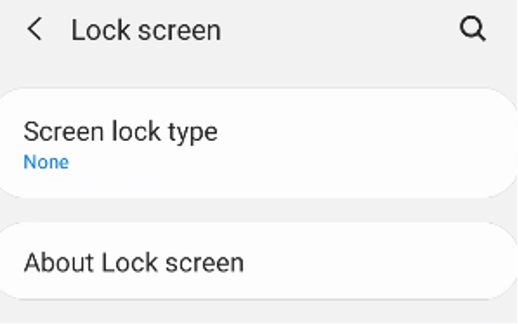
    Device Lock Screen must be set to “None” as default option. In order to do that go to Settings and then open the menu Lock Screen. Select Screen Lock Type as None.

    1. Open Settings
    2. Tap on Lock screen.
    3. Select Screen Lock Type as None

    Copyright © 2026 Quadified