Access & sign in
Working with the Quad TEO Web UI
When you connect to the Quad TEO WEB UI, the main Dashboard will appear. From here you control all your instances from one single place. Users will be able to add Test Nodes, Mobile Profile, create Test Cases, Test Suite and execute Tasks easily from one single place. Reports are available immediately via email and can be downloaded on the user computer with one click.
The basic interface is comprised of the following areas:
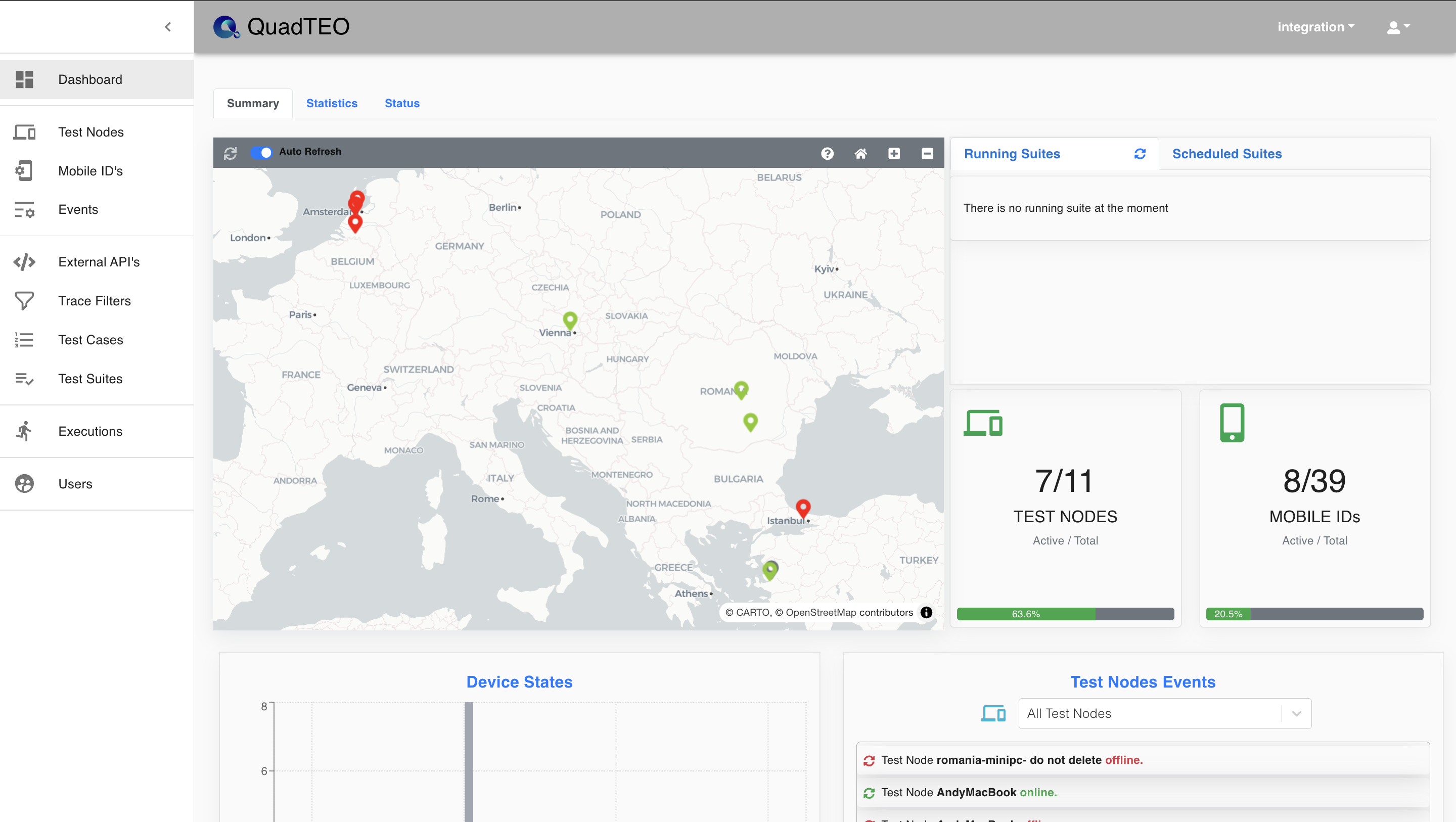
Settings and Sign Out are in the user menu at the top right. What each role can see and do is described under User roles.
Accessing the Web UI
To access Quad TEO Web UI, launch a web browser (we recommend using Chrome) and enter the HTTPS URL provided by Quadified.
Logging in to the Web UI
To successfully log in to the TEO Web UI, the user must authenticate his credentials using the following procedure:
On the QuadTEO User Log In page, enter the User Name and Password provided to you by Quadified and click Login.

If your organisation signs in through its own identity provider, click Corporate Login instead. On some deployments the page shows only two cards, Organization Login and Quadified Login; choose the one your administrator told you to use.
When your session expires, the message "Your session has expired — please sign in again." appears and the login page opens two seconds later. After you sign in again, you return to the page you were on.
The top bar
Projects filter
Most list pages (Test Nodes, Mobile ID's, Connectors, Trace Filters, Test Cases, Test Suites, Executions) and the Test Case and Test Suite detail pages show a Projects filter in the top bar. It reads Projects ( All ) when no project is selected, or Projects (n) when n projects are selected. The lists then show only items assigned to the selected projects.
Click it to open the project list:
- Search or Create: type to find a project. If the name does not exist yet, click Create to add it.
- Select All / Deselect All, and Show Selected (n) / Show All Projects to narrow the list.
- Hover over a project to Edit (rename) or Delete it. This is the only place in the Web UI where you can rename or delete a project.
Your selection is remembered in this browser. Items are assigned to projects with Assign Projects on each list page; new Test Cases and Test Suites start with the projects that are selected in this filter.
User menu
Click the person icon at the top right. The menu shows your e-mail address and role, and offers:
- Documentation: opens this documentation in a new tab.
- Settings: change your password and see the version (not shown to Guest users). See Settings.
- Sign Out.
Sign Out
Open the user menu at the top right and click Sign Out to sign out of the QTEO UI.
