Set up trace filters
This page is a step-by-step guideline of the TEO Trace Filters concept.
Under this page, user can perform the following actions:
Prerequisites
- We should have a Trace Filter.
- We should have API credentials (
clientIdandclientSecret) to get an access token. See Authentication. - We should add the created Trace Filter to a Test Case.
- We should have a PDML file to check against the Trace Filter.
- A tool to call APIs, for example
curlor Postman.
Getting an access token 
The trace endpoints use the same bearer token as the rest of the API; the API keys that older versions of this page described were retired. Request a token with your API credentials and send it in the Authorization header of every call:
curl --request POST \
  --url "$BASE_URL/api/v2/connect/token" \
  --header "Content-Type: application/json" \
  --data '{ "clientId": "<YOUR_CLIENT_ID>", "clientSecret": "<YOUR_CLIENT_SECRET>" }'
BASE_URL is your API address, https://app-<environment>.quadified.com. The token is valid for one hour. See cURL Commands for details.
Create Trace Filter
In order to create a Trace Filter, we should follow the steps below:
- Go to the Trace Filters tab from the TEO UI.
- Click on the “+” sign on the right upper side of the window to create a new filter. The Trace Filter page opens.
- Enter the name of the filter (at least 5 characters) and, optionally, its Projects.
- Enter the filter content in XML format. Use Validate XML to check it and Format XML to indent it, then save.
In the Trace Filters list, the ⋮ menu offers Assign Projects and Delete (confirmed in the Delete Trace Filter dialog).
Preparing XML
To prepare an XML for Trace Filter, let’s understand the template first.
There are two types of params “LOG” and “FLOW“.
-
The conditions in LOG type are to filter the trace, put the results into a file, and attach the file to the test case execution. This file can be downloadable from the Test Case Execution Result page.
-
The conditions in FLOW type are to filter the trace and show the matched logs in the Trace Logs. The matched logs are displayed on the Test Case Execution Result → Trace Logs page.
IMPORTANT NOTE: The FLOW type is for specifying the expected flow/sequence of messages. That’s why the FLOW type of conditions determine the Test Case success/failure, based on whether the traces for the Test Case matches/contains the given flow or not. So if the trace pdml does not satisfy the given flow/sequence, then Test Case is marked as "FAILED". The LOG type of conditions does not affect on the Test Case success/failure.
In XML, variables can be used as well. There are two types of variables:
-
Predefined variables:
${ATF_IMSI}→ IMSI value of the device${ATF_MSISDN}→ MSISDN value of the device
-
User-defined variables → variables for dynamic values.
- The user-defined variables can be defined using the
<atfFunction type="variable">tag as can be seen in the below XML template. The name of the variable is set using thesetvartag. For example<setvar>sessionId</setvar>. This user-defined variable can be used in the further predicates with the following format{ATF_VAR_varname}. For our example this will be as follows:{ATF_VAR_sessionId}.
- The user-defined variables can be defined using the
XML Trace Filter
The following code snippet contains a Trace Filter XML template:
<?xml version="1.0"?>
<atfTraceFlowDefinition>
    <flowParams type="LOG">
        <conditions logic="AND" protocol="SIP">
            <conditionEntries logic="AND">
                <predicates>
                    <expression>//field[@name='sip.Via.transport' and @show='TCP']</expression>
                </predicates>
            </conditionEntries>
        </conditions>
        <conditions logic="AND" protocol="DIAMETER">
            <conditionEntries logic="AND">
                <predicates>
                    <expression>/field[@name='diameter.applicationId' and @show='1234567']</expression>
                </predicates>
            </conditionEntries>
        </conditions>
    </flowParams>

    <flowParams type="FLOW">
        <conditions logic="AND" protocol="DIAMETER">
            <atfFunction type="variable">
                <predicates>
                    <expression>//field[@name='diameter.Session-Id']</expression>
                </predicates>
                <fieldvalue>@show</fieldvalue>
                <setvar>sessionId</setvar>
            </atfFunction>

            <conditionEntries logic="AND">
                <predicates>
                    <expression>//field[@name='diameter.flags.request' and @show='1']</expression>
                </predicates>

                <predicates>
                    <expression>//field[@name='diameter.CC-Request-Type' and @show='1']</expression>
                </predicates>

                <predicates>
                    <expression>//field[@name='diameter.Called-Station-Id' and @show='ims']</expression>
                </predicates>
            </conditionEntries>
        </conditions>

        <conditions logic="AND" protocol="DIAMETER">
            <conditionEntries logic="AND">
                <predicates>
                    <expression>//field[@name='diameter.flags.request' and @show='0']</expression>
                </predicates>

                <predicates>
                    <expression>//field[@name='diameter.Session-Id' and @show='${ATF_VAR_sessionId}']</expression>
                </predicates>

                <predicates>
                    <expression>//field[@name='diameter.Result-Code' and @show='2001']</expression>
                </predicates>
            </conditionEntries>
        </conditions>

        <conditions logic="AND" protocol="SIP">
            <atfFunction type="variable">
                <predicates>
                    <expression>//field[@name='sip.Call-ID']</expression>
                </predicates>
                <fieldvalue>@show</fieldvalue>
                <setvar>callId</setvar>
            </atfFunction>

            <conditionEntries logic="AND">
                <predicates>
                    <expression>//field[@name='sip.Method' and @show='REGISTER']</expression>
                </predicates>

                <predicates>
                    <expression>//field[@name='sip.from.user' and @show='${ATF_IMSI}']</expression>
                </predicates>

                <predicates>
                    <expression>//field[@name='sip.Expires' and @show='600000']</expression>
                </predicates>
            </conditionEntries>
        </conditions>

        <conditions logic="AND" protocol="SIP">
            <conditionEntries logic="AND">
                <predicates>
                    <expression>//field[@name='sip.Status-Code' and @show='401']</expression>
                </predicates>
                <predicates>
                    <expression>//field[@name='sip.Call-ID' and @show='${ATF_VAR_callId}']</expression>
                </predicates>
            </conditionEntries>
        </conditions>

    </flowParams>
</atfTraceFlowDefinition>
Let's check each of the components of the template XML above. In this XML:
-
We have two conditions with one predicate for each condition for the LOG type.
- The first condition is for SIP protocol and checks whether the SIP transfer protocol is “TCP” or not.
- The second condition is for DIAMETER protocol and checks whether the DIAMETER application id is
1234567or not. - All the logs that meet these conditions will be added to the file to be attached to the Test Case Execution Result.
-
We have four conditions for the FLOW type.
- The first condition is for DIAMETER protocol and contains one user-defined variable and three predicates. The name of the user-defined variable is
<setvar>sessionId</setvar>. - The second condition is also for DIAMETER protocol and contains three predicates. The second predicate uses a user-defined variable which is defined in the first condition above '
{ATF_VAR_sessionId}'. - The third condition is for SIP protocol and contains one user-defined variable and three predicates. The name of the user-defined variable is
<setvar>callId</setvar>. The second predicate of the condition uses a predefined IMSI variable '${ATF_IMSI}'. - The fourth condition is also for SIP protocol and contains two predicates. The second predicate uses the user-defined variable which was defined in the third condition above '
${ATF_VAR_callId}'. - All the logs that meet these conditions will be displayed in the Trace Logs of the Test Case Execution Result.
- The first condition is for DIAMETER protocol and contains one user-defined variable and three predicates. The name of the user-defined variable is
NOTE: That the condition logic is “AND“. This means that all predicates should be met for a log. It is also possible to use “OR“ logic for the conditions and predicates.
NOTE: It is possible to add multiple conditions with multiple predicates.
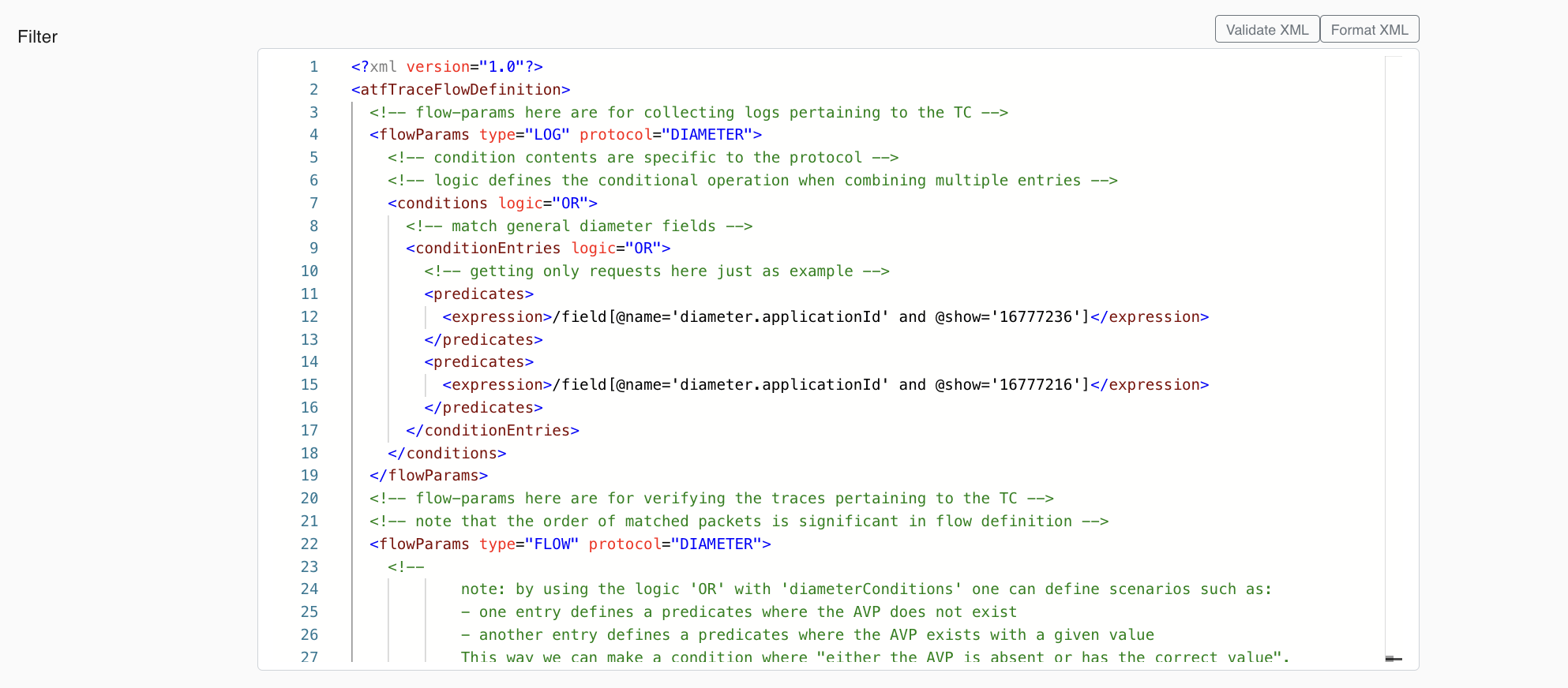
Once the XML is ready, it is possible to validate and format it while creating the Trace Filter as below:
Below is an example screenshot.