View existing Test Cases
Once you click on the Test Cases tab, all existing Test Cases are displayed:
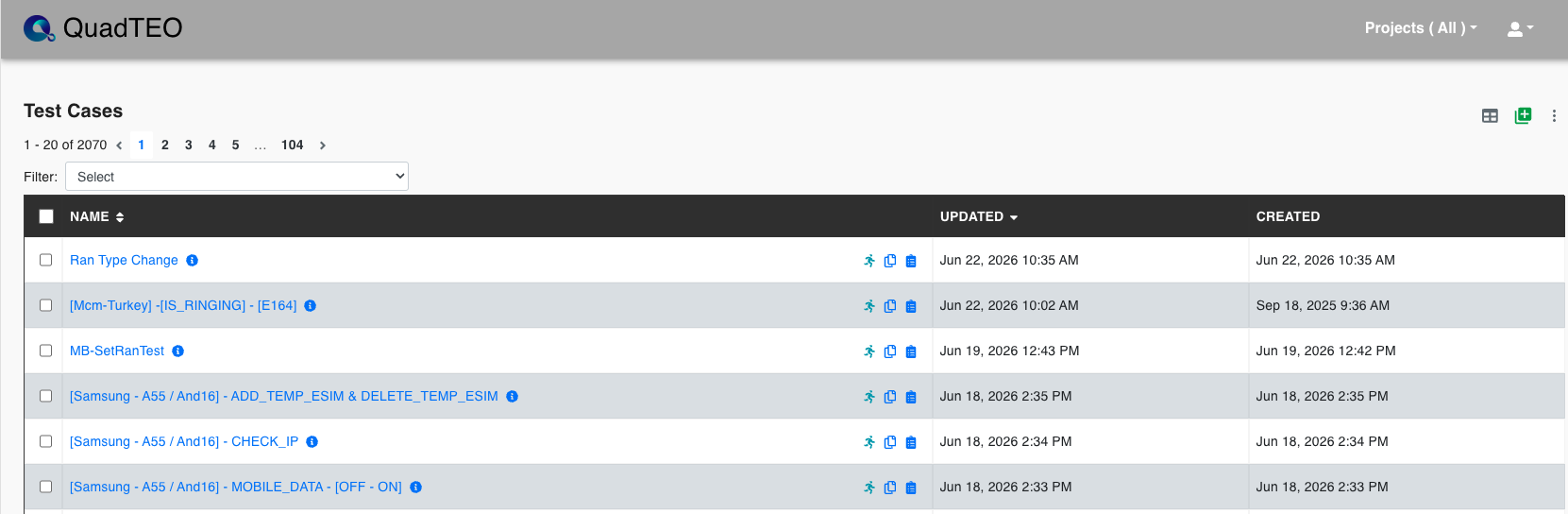
Row icons
Each Test Case row has three quick-action icons on the right:
- Run (the runner icon) — starts the test case as a Direct Run, without a test suite.
- Copy — copies the test case name to the clipboard.
- Run History — opens the Run History modal for that test case.
Test Case info
Click the info (ⓘ) icon next to a test case name to open a quick summary popup, without leaving the list:
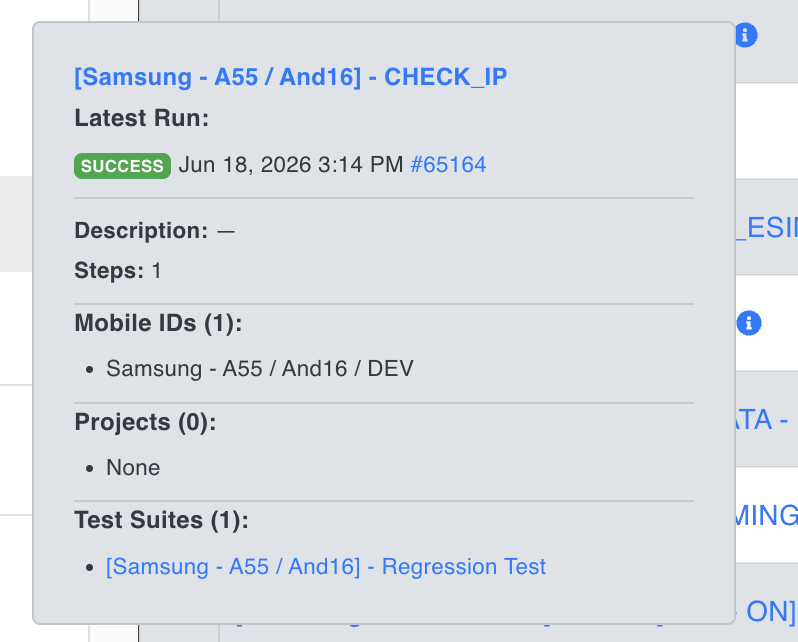
The popup shows:
- Latest Run — the result (e.g. SUCCESS), date/time, and a link to the execution.
- Description — the test case description, if any.
- Steps — the number of steps in the test case.
- Mobile IDs — the mobile devices the test case targets.
- Projects — the projects the test case is assigned to.
- Test Suites — the test suites that contain this test case.
Run History
Clicking the Run History icon on a row opens a modal listing every past execution of the test case:
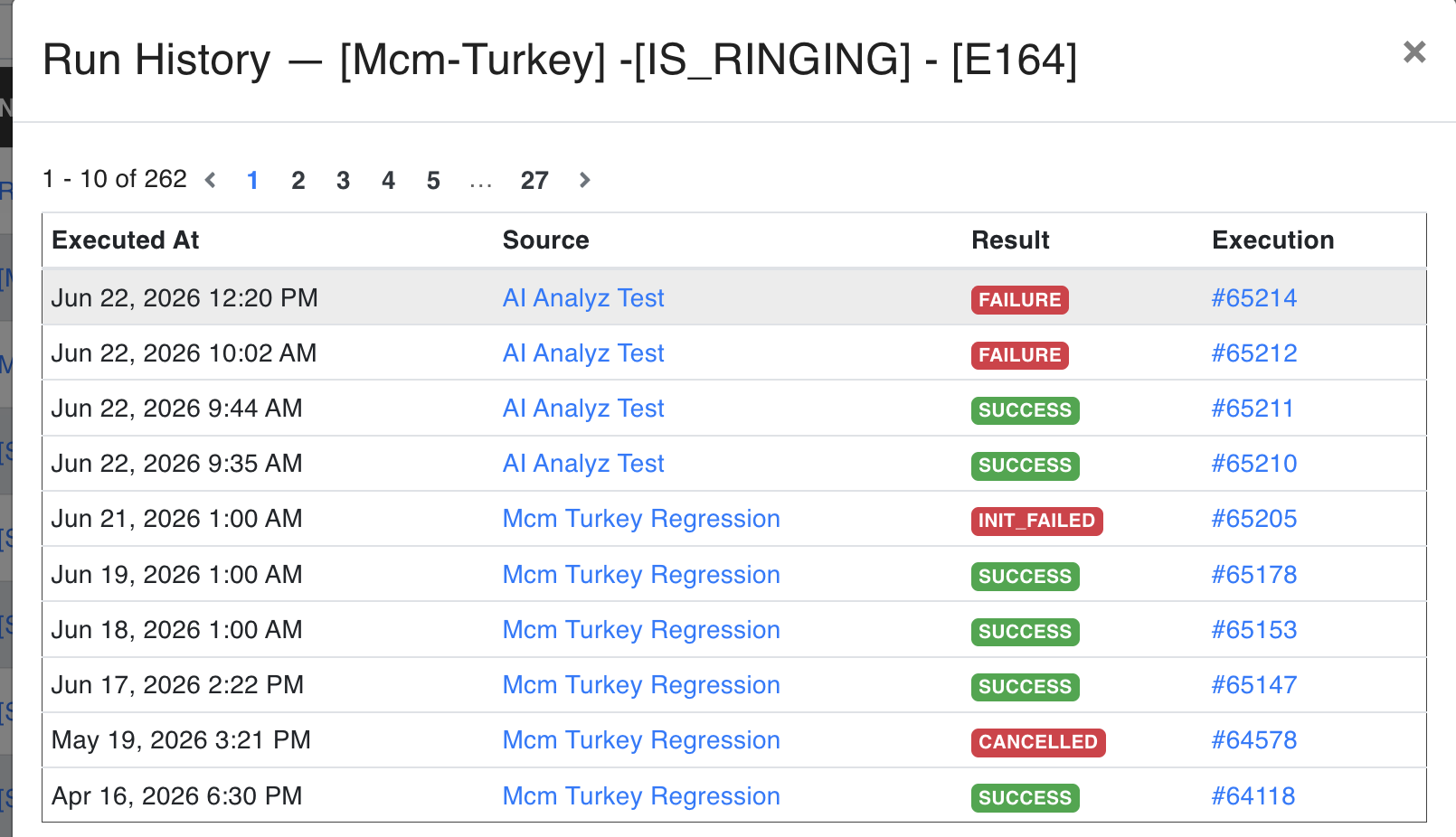
Each entry shows the Executed At time, the Source (Direct run, or the name of the test suite it ran as part of), the Result, and a link to the Execution. See Run History for details.
Parameters
| Parameter | Description |
|---|---|
| Name | The name of the test case. |
| Description | A brief description of the test case. |
| Mobile IDs | The mobile devices associated with the test case. |
| Steps | The number of steps in the test case. |
| Project | The project to which the test case belongs. |
| Updated | The date and time when the test case was last updated. |
| Actions | History , Assign Projects , Export , Import , Delete |