AI Authoring — Draft Test Cases from Requirements
AI Authoring lets you create automated test cases without writing any test steps by hand. You describe what you want to verify in plain language, AI drafts a complete runnable test case, and you review and approve it. Beyond authoring, the feature keeps an eye on the test after it goes live: every run is analysed automatically and turned into feedback telling you whether a failure is a real product defect or a mistake in the test itself.
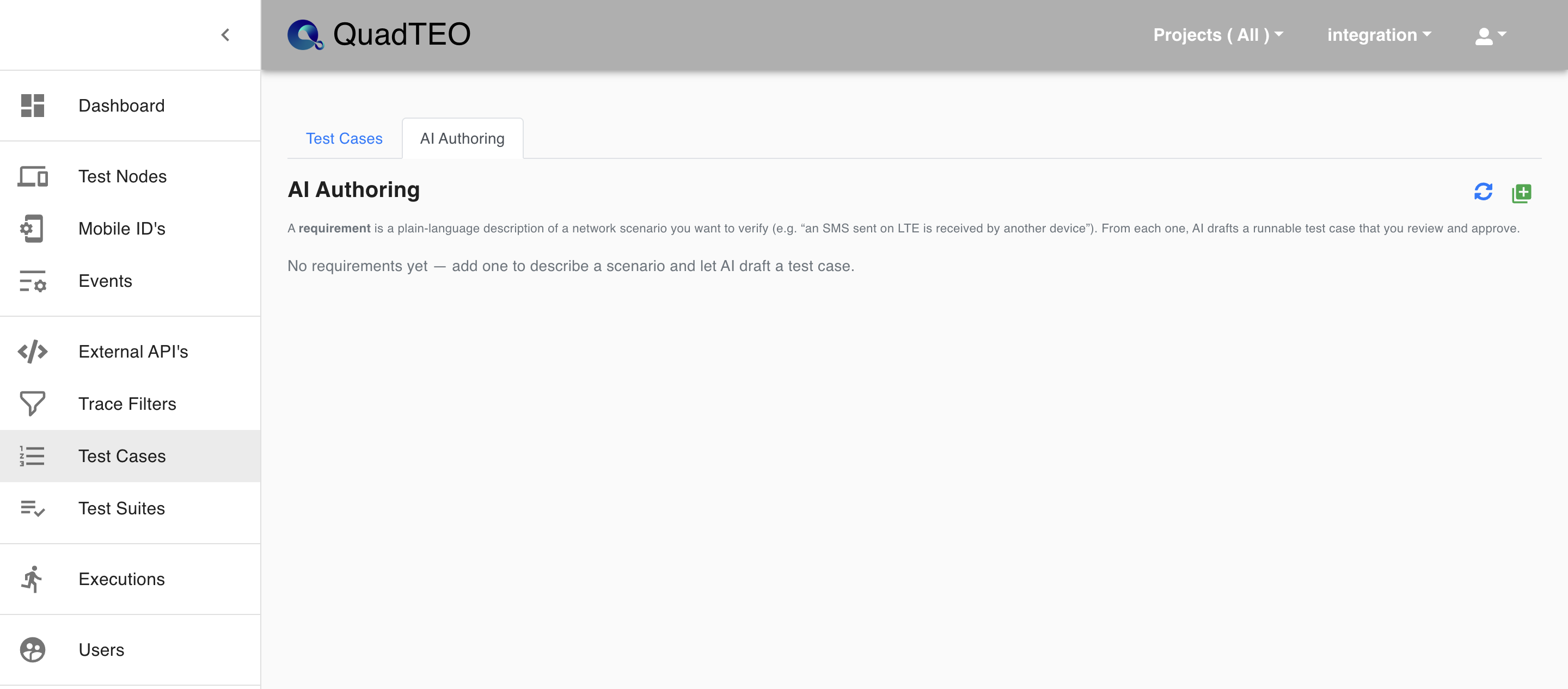
The feature lives on the Test Cases page, in the AI Authoring tab next to Test Cases. The refresh icon reloads the list, and the green + icon opens the New Requirement dialog.
What a requirement is
A requirement is a plain-language description of a network scenario you want to verify — for example, "an SMS sent on LTE is received by another device". From each requirement, AI drafts a runnable test case that you review and approve.
The end-to-end flow
The whole feature follows one simple loop:
- Create a requirement in plain language.
- Suggest a draft test case with AI.
- Review the draft and Approve it — this creates a real test case.
- Run the test case, directly or as part of a suite.
- Read the Feedback the run produces, and Re-suggest to fix the test if needed.
- Mark done when you are satisfied — or Reopen later to resume monitoring.
Creating a requirement
Click the + icon at the top-right of the AI Authoring tab. The New Requirement dialog opens.
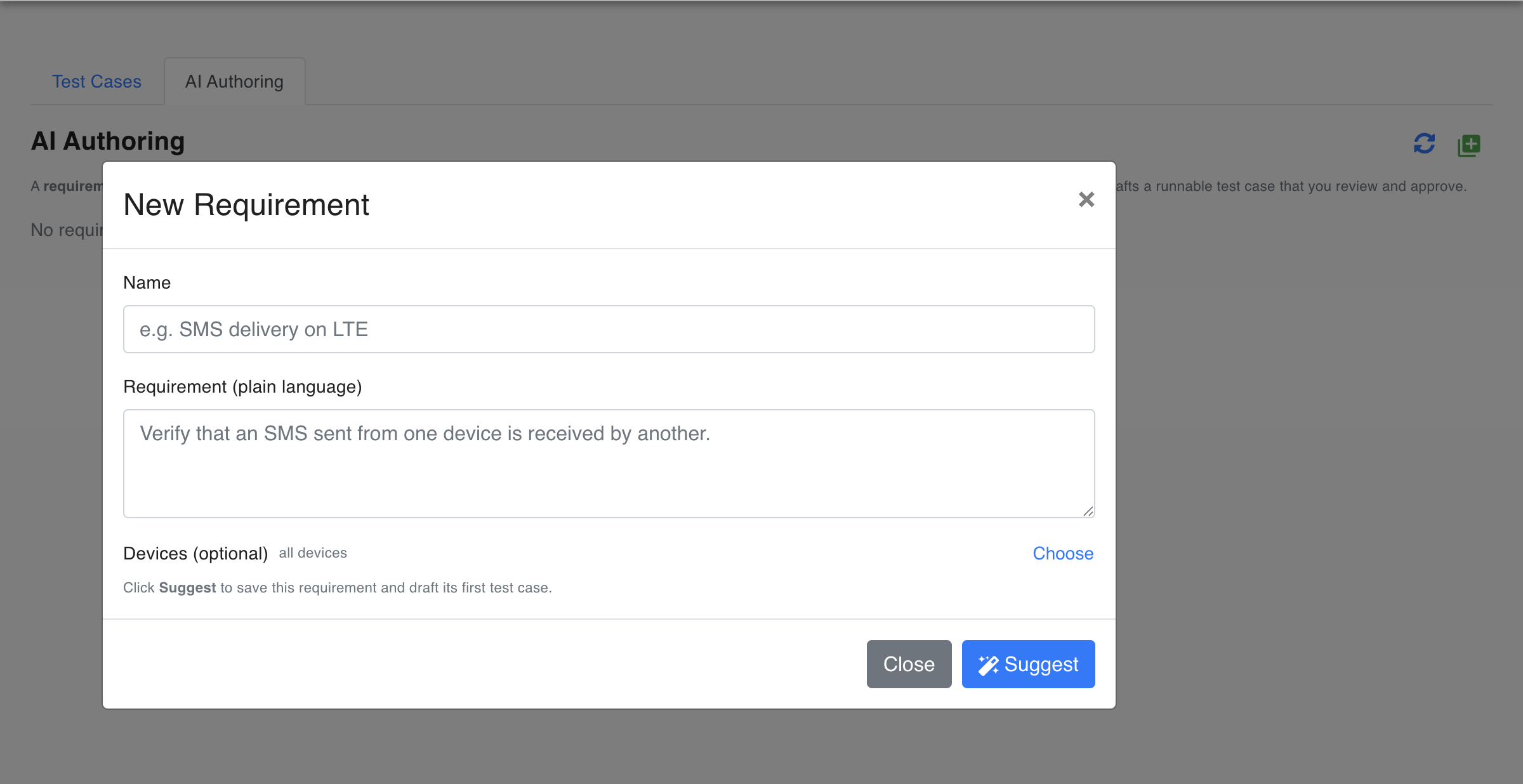
Fill in the fields:
| Field | Description |
|---|---|
| Name | A short label for the requirement, for example Send and Receive SMS. |
| Requirement (plain language) | The scenario you want to verify, written as a normal sentence. |
| Devices (optional) | Which devices the test should use. Defaults to all devices. |
Choosing devices
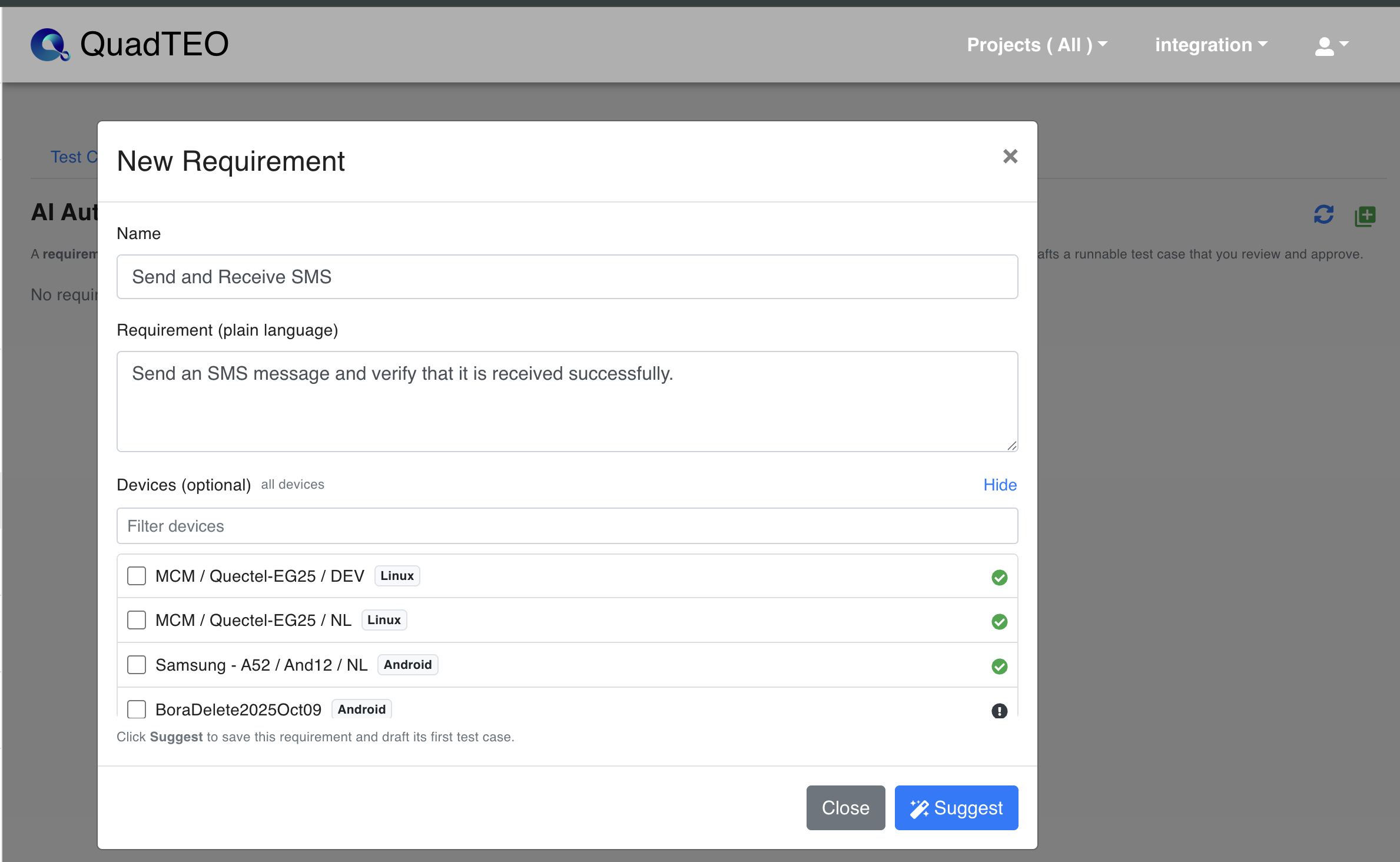
Leaving Devices untouched is the simplest option: AI picks from the devices that are currently active and never builds a test around an inactive phone.
To target specific devices, click Choose to expand the device list and tick the ones the scenario should use. Each device shows its platform tag (Android, iOS, Linux). Use Filter devices to narrow a long list, and Hide to collapse it again.
Save the requirement when the fields are filled in. A confirmation appears once it is stored, and the requirement joins the list with its Name, Description and an Actions column. You can search requirements by name using the search box.

Each requirement row has two actions: the lightbulb opens the suggestions and feedback panel, and the red X deletes the requirement.
Drafting a test case
Clicking Suggest in the New Requirement dialog saves the requirement and drafts its first test case in one step. To work on a requirement later, open its panel with the lightbulb action in the requirement row — the panel has two tabs, Suggestions and Feedback, and a Re-suggest button that drafts a fresh test case.
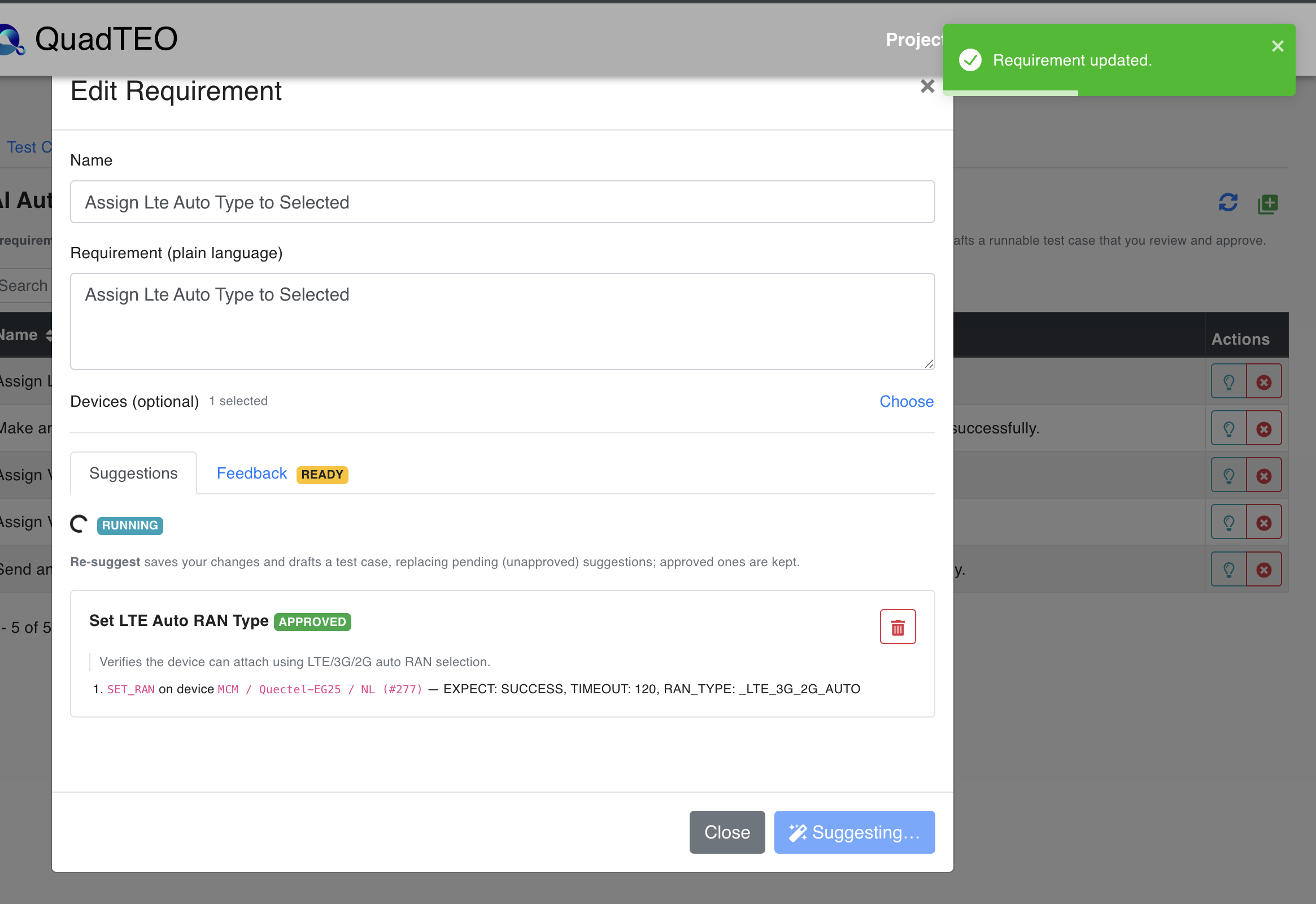
While AI works, the button reads Suggesting… and the panel shows a RUNNING badge; it turns to DONE when the draft is finished. A notification tells you the draft is ready.
Reviewing a suggestion
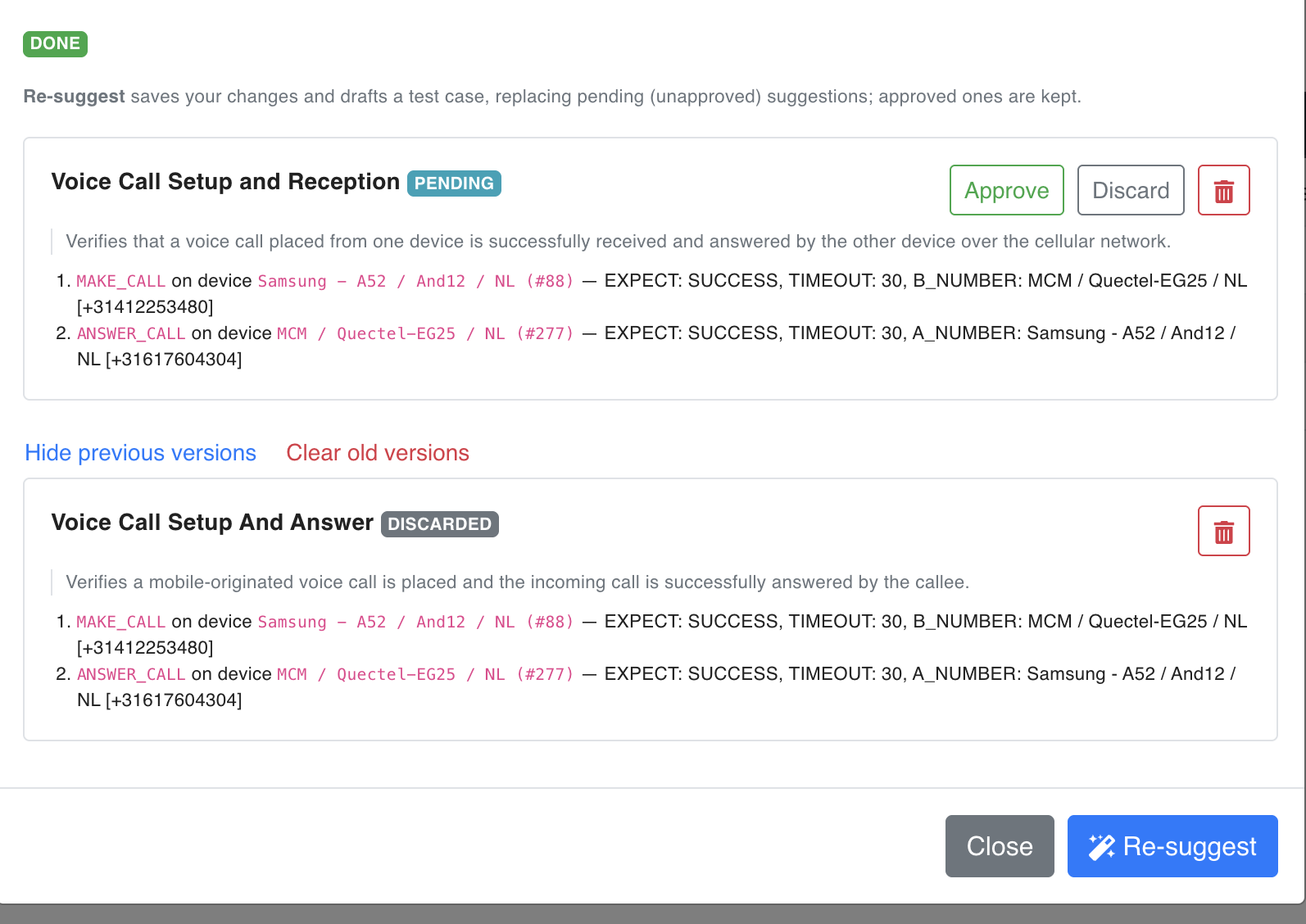
The result is a draft in PENDING state. Each suggestion shows a title, a status badge, a one-line summary of what it verifies, and the numbered test steps with their real functions, devices and parameters — this is where you see how AI translated your plain-language text into concrete commands with parameters such as EXPECT, TIMEOUT, B_NUMBER and SMS_TEXT.
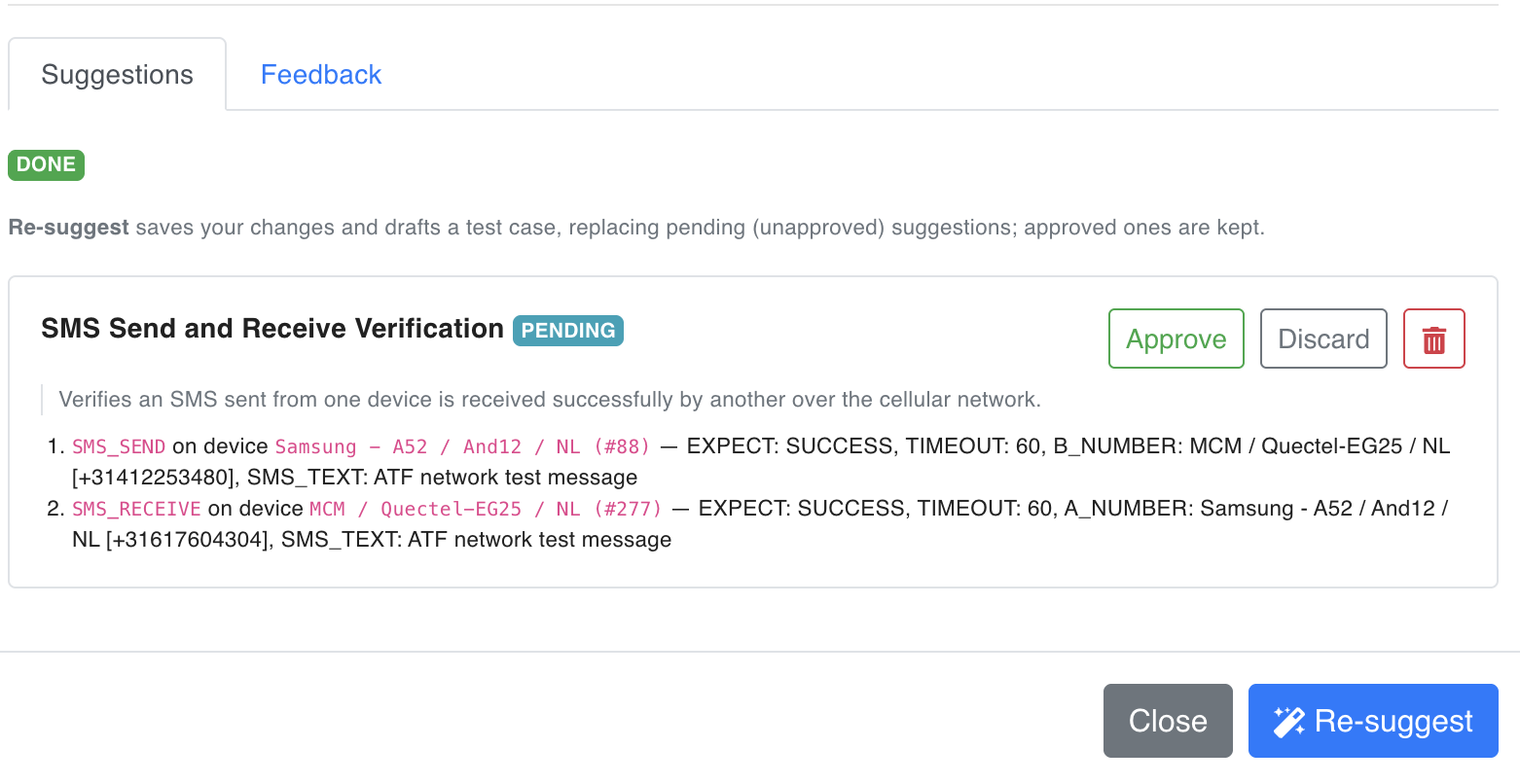
You have three actions for any draft:
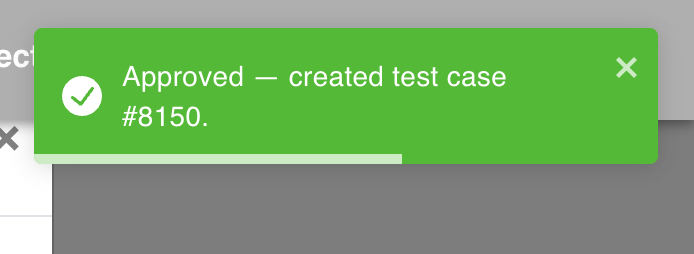
- Approve — accepts the draft and turns it into a real test case. The draft becomes APPROVED and a notification confirms it with the test case number.
- Discard — rejects this draft. It is marked DISCARDED and kept for reference.
- Delete (trash icon) — removes the draft entirely.
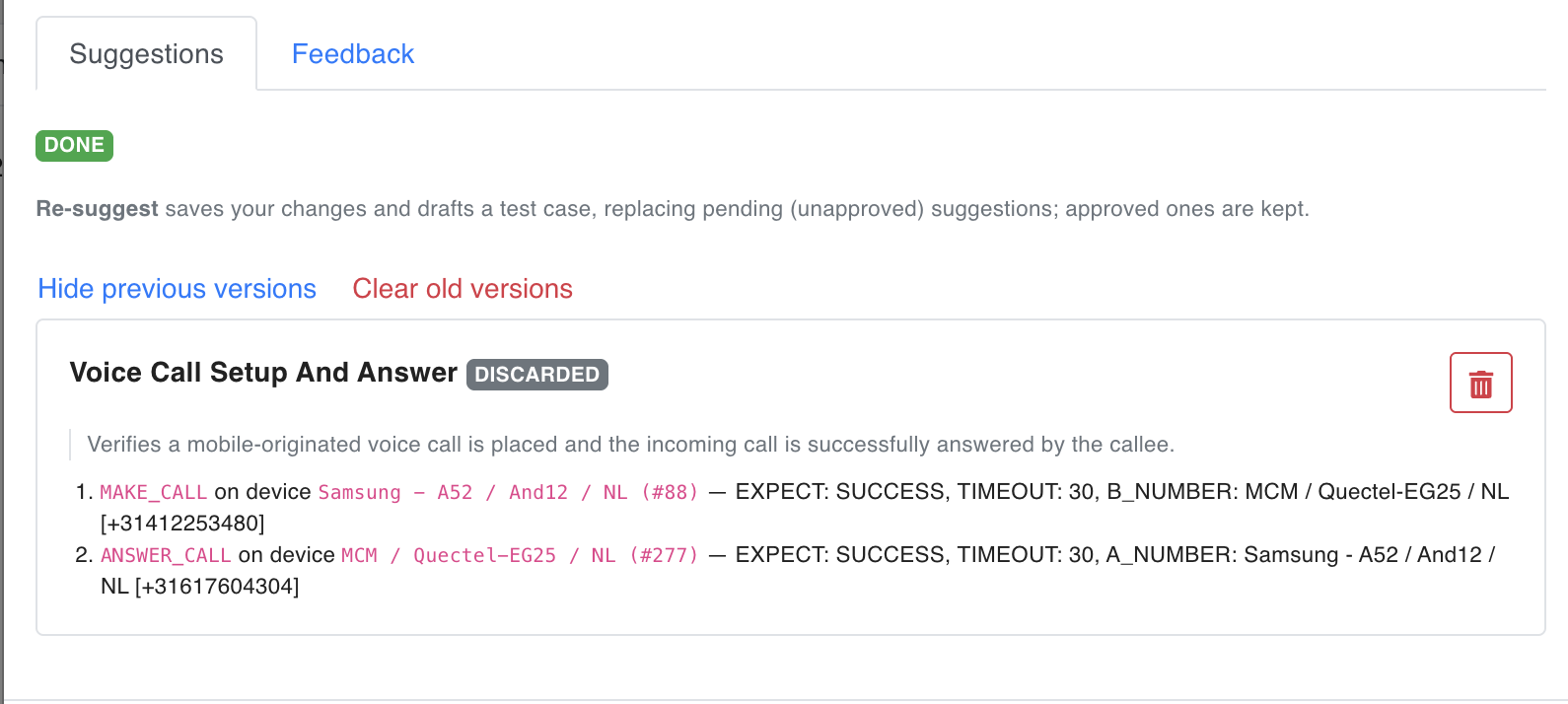
Re-suggest saves your changes and drafts a new test case. It replaces any pending (unapproved) drafts, but approved ones are kept. Earlier drafts are preserved as versions: expand or collapse them with Show / Hide previous versions, and tidy them up with Clear old versions.
When a requirement cannot be tested
Not every scenario can be turned into a test case. If the requirement is impossible to run on the available devices, AI produces no suggestion and marks the result EMPTY, together with a short explanation of what stands in the way.
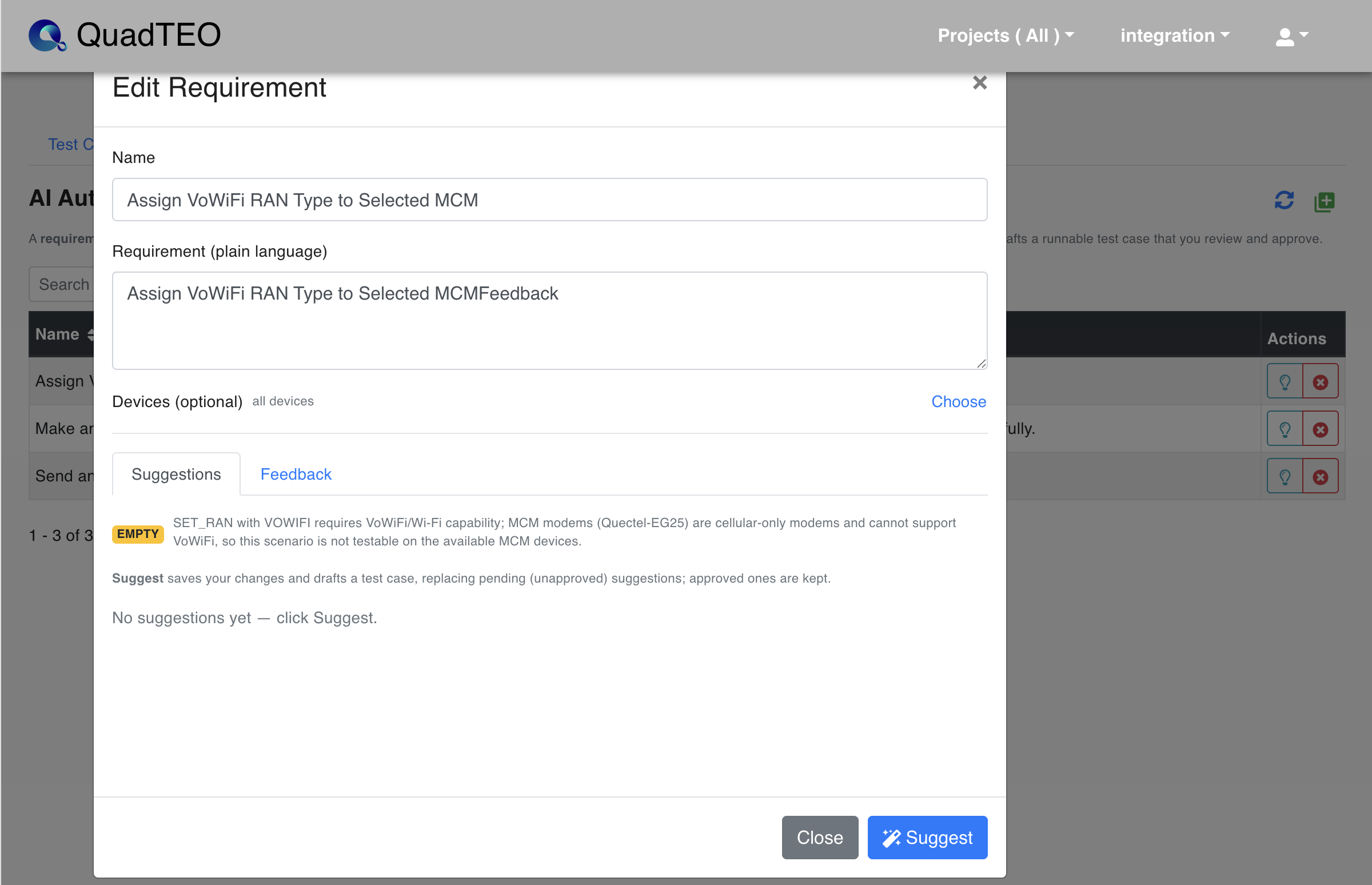
In the example above, the requirement asks for a VoWiFi RAN type, but the selected MCM devices use Quectel-EG25 cellular-only modems that have no Wi-Fi capability — so the scenario is not testable on those devices. Adjust the requirement, or select devices that support the feature, and press Re-suggest again.
Changing a scenario and regenerating
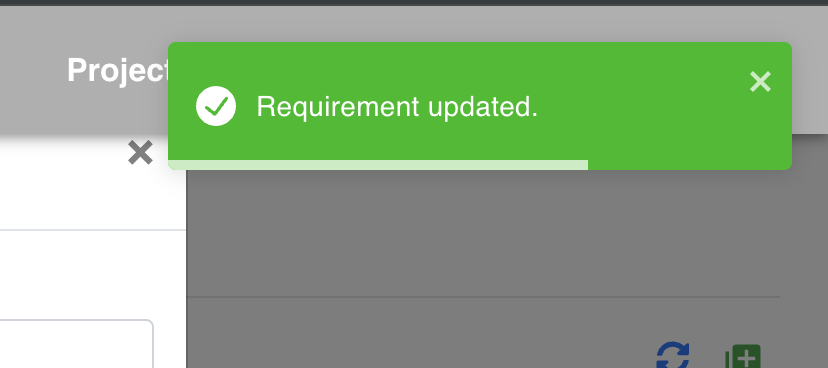
To change a scenario, edit the requirement's Name, Requirement text or device selection in the panel and save it. A confirmation tells you the requirement was updated.
Then press Re-suggest so the draft reflects the new scenario. The fresh draft arrives in PENDING state at the top, with the earlier versions still available below.
Approving a draft that belongs to an existing test case updates that test case instead of creating a new one, so the notification reads "Approved — updated test case #8134" rather than announcing a brand-new entry.
Tip
The first approval creates a new test case. After that, editing the requirement and re-approving updates the same test case — you keep one clean test that evolves with the scenario.
Feedback — tracking what happens when the test runs
The Feedback tab tracks only test cases that were created by AI Authoring. Before the test has ever run, it shows a prompt explaining what will happen.
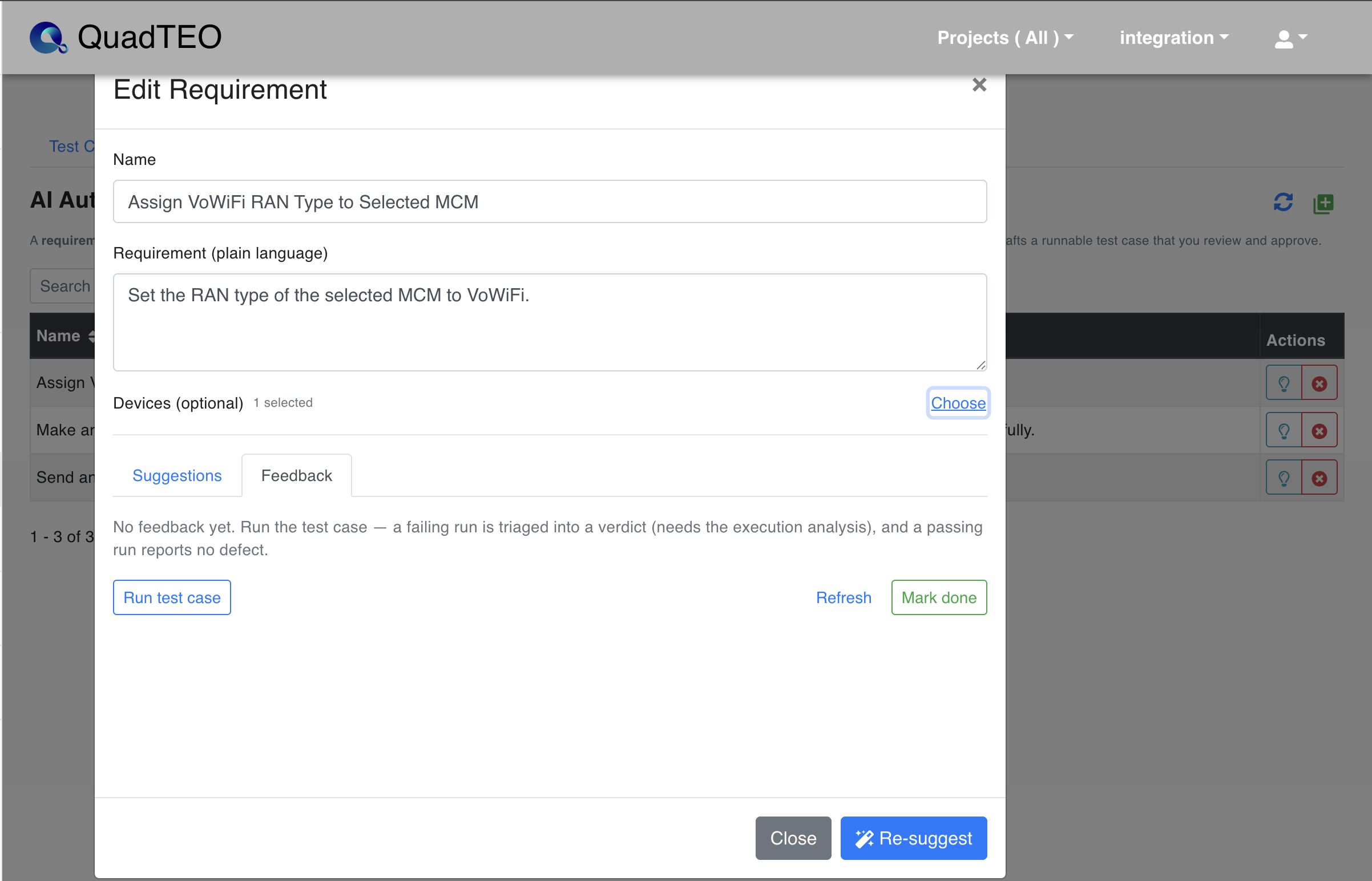
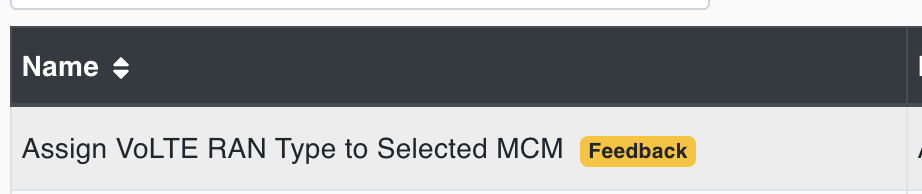
When feedback is available, a READY badge appears on the tab, and the requirement row in the list carries a Feedback marker so you can spot it without opening the panel.
Running the test
You can run the test case in any of three ways, and the result flows back into the Feedback panel no matter which one you use:
- Run test case in the Feedback tab — this starts a Direct run, and a notification reports the execution number.
- Add the test case to a Test Suite and run the suite.
- Run it from the Test Cases page.
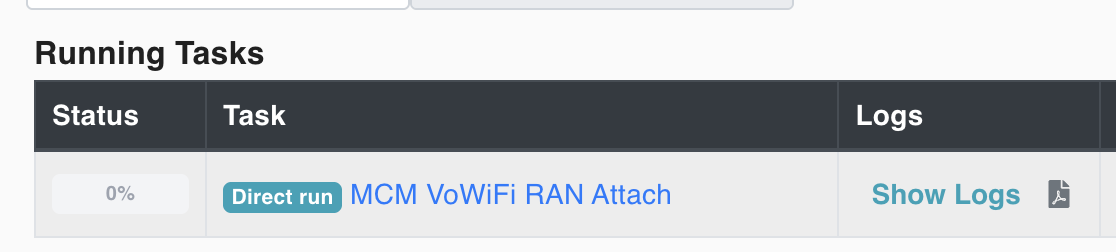
A run started with Run test case appears on the Executions page under Running Tasks, labelled Direct run:
How a run is judged
A passing run reports no defect — the panel simply confirms "The last run passed — the test looks good." While the test keeps passing, no new feedback is generated; feedback only reappears when a run fails.
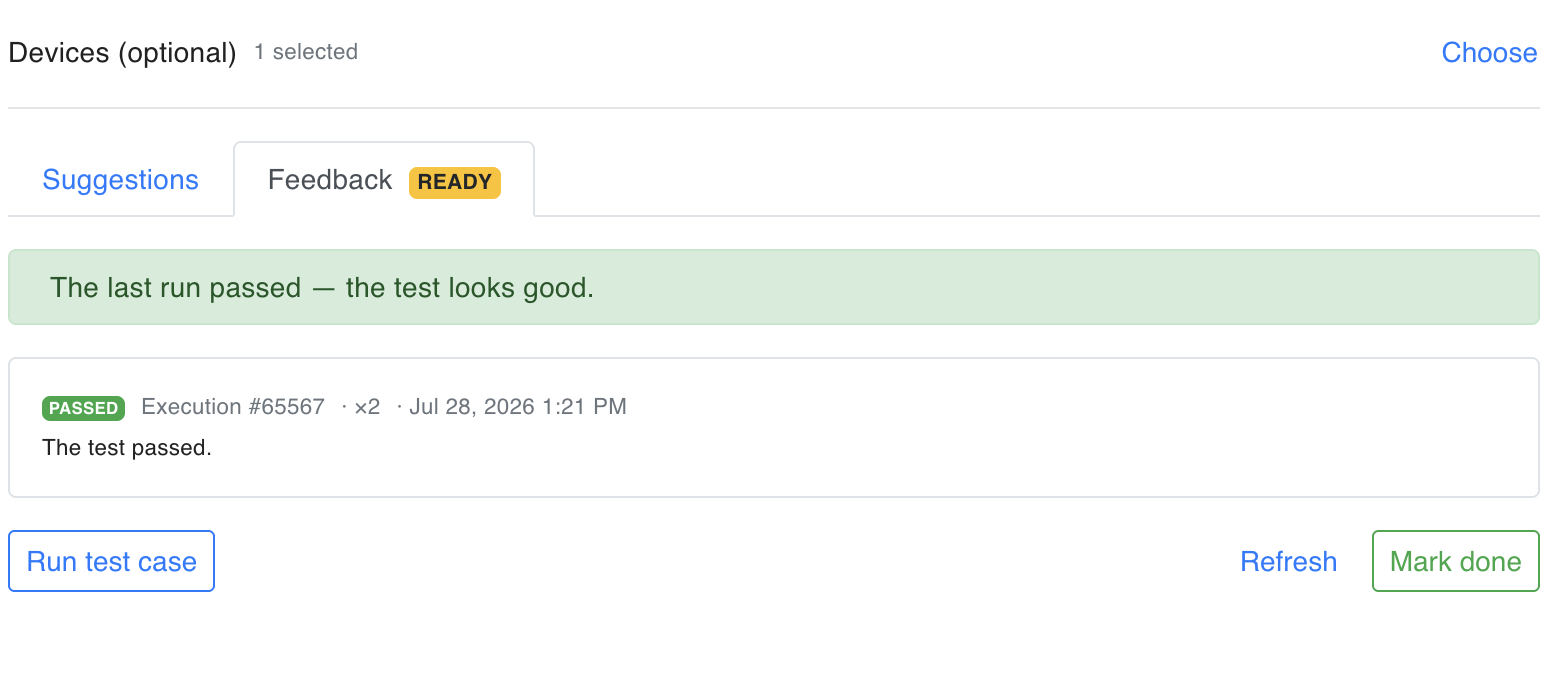
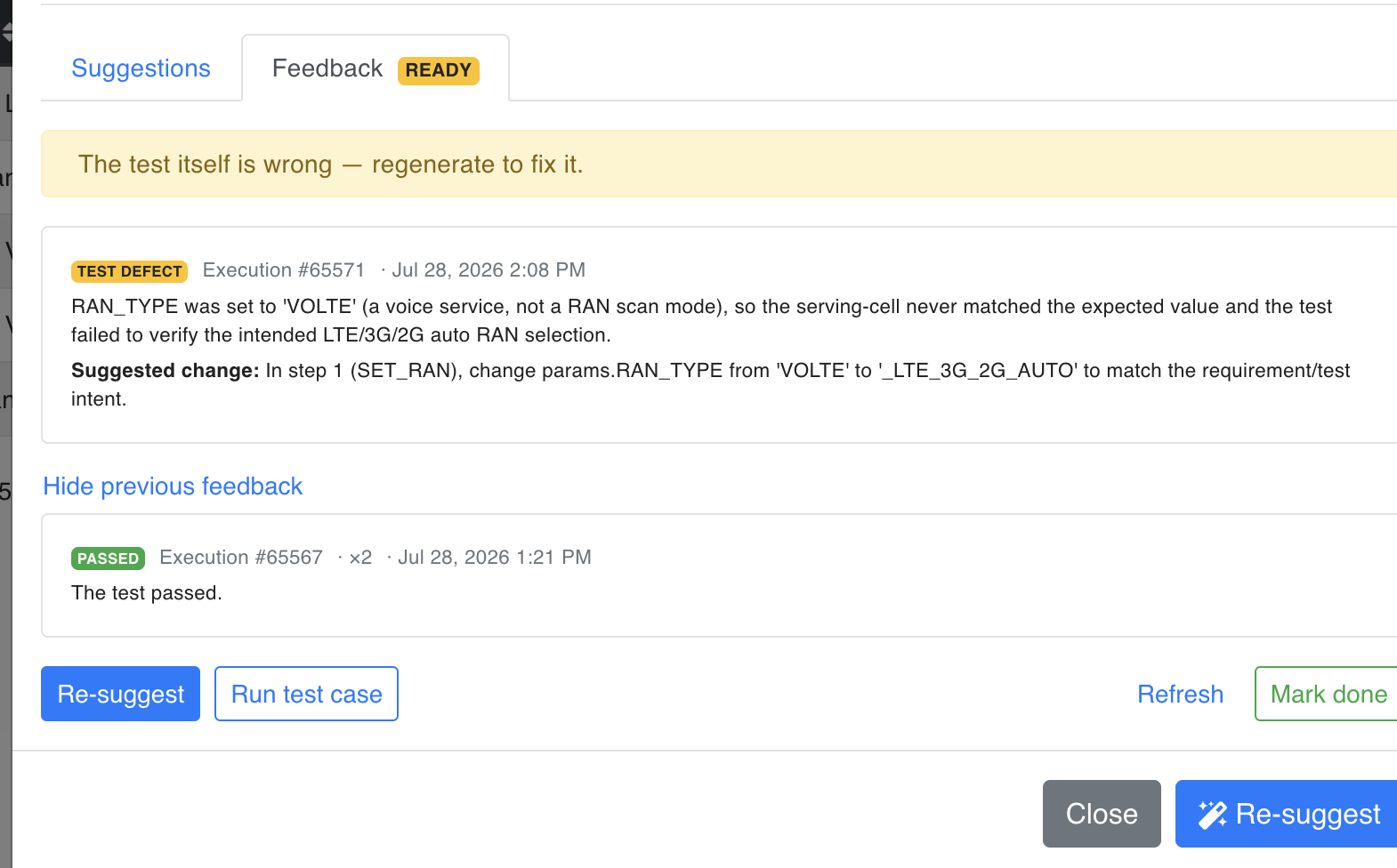
Repeated identical results are collapsed into a single entry with a count (×2 above), so the same outcome does not pile up.
When a run fails, the execution is analysed automatically — you can follow this on the Executions page while the analysis runs — and a new feedback entry is produced.

The failure is triaged into a verdict that tells you where the problem actually is:
| Verdict | Meaning | What to do |
|---|---|---|
| PASSED | The test passed. | Nothing. |
| TEST DEFECT | The test itself is wrong. | Click Re-suggest to fix the test. |
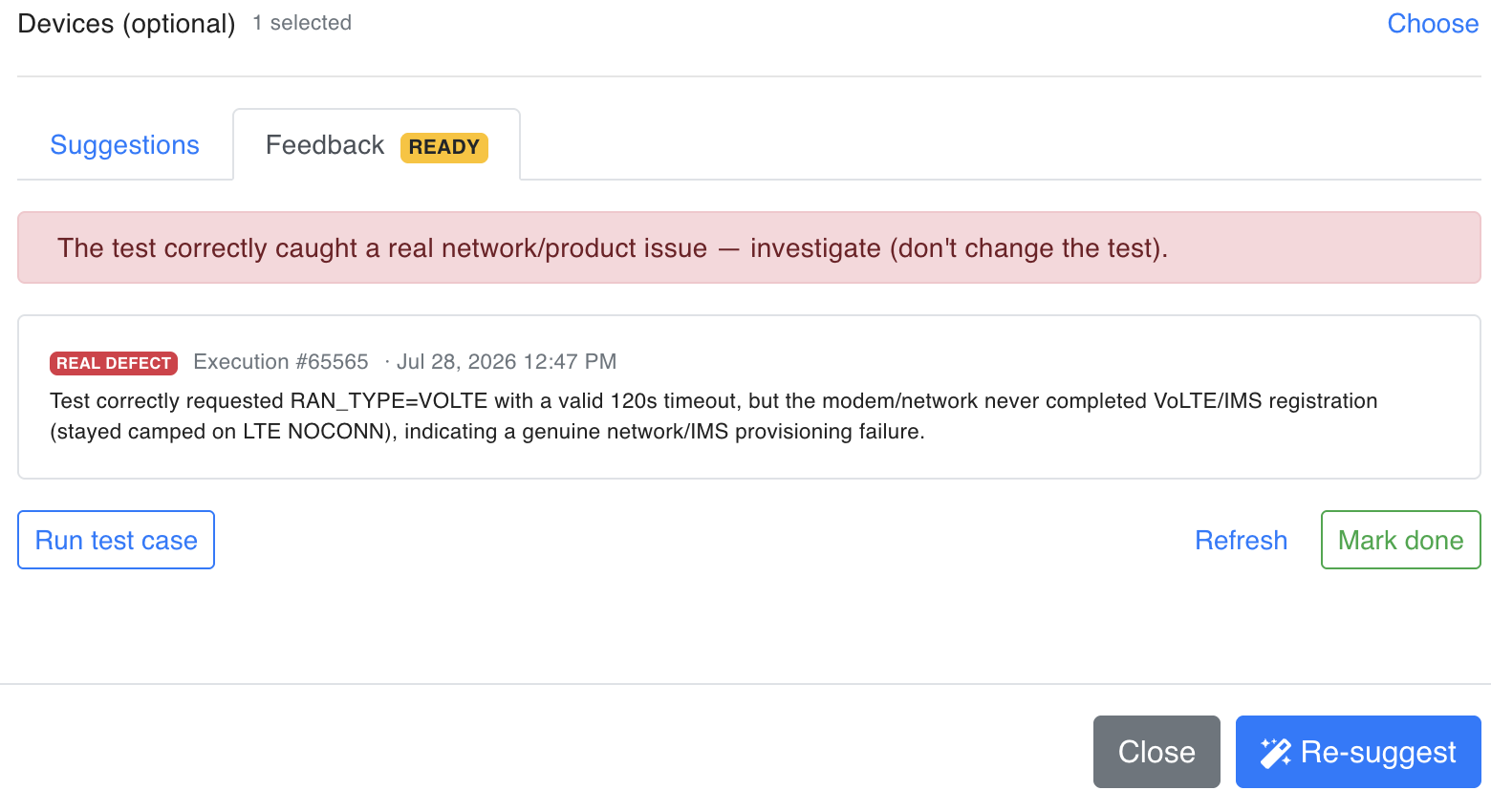
| REAL DEFECT | The test correctly caught a real network or product issue. | Investigate the network or product — do not change the test. |
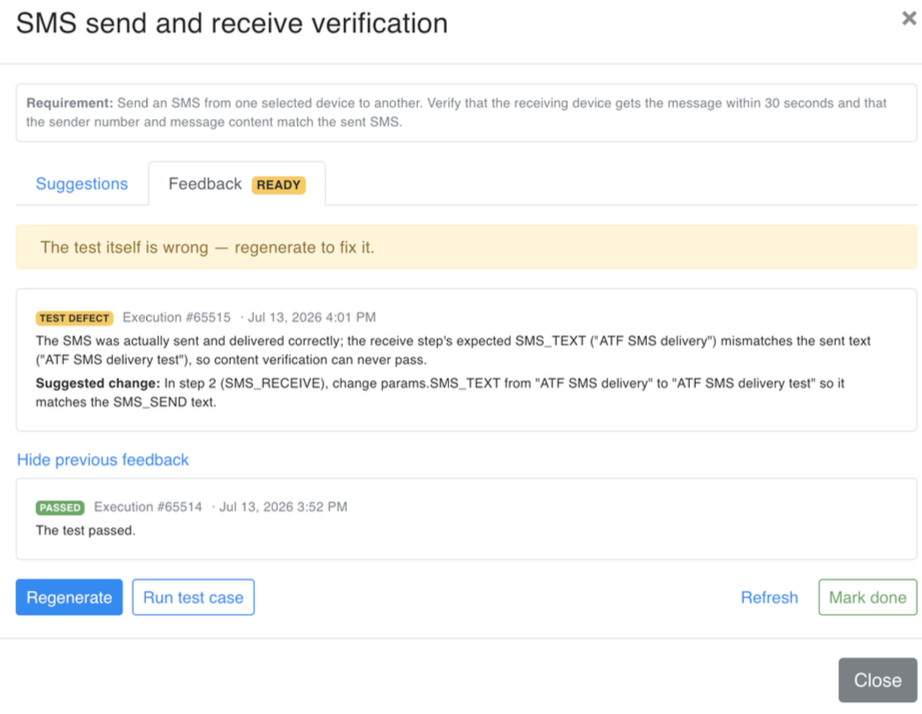
When the verdict is TEST DEFECT, the analysis explains what is wrong and adds a Suggested change. In the example below, the SMS was sent and delivered correctly, but the receive step expected a different SMS_TEXT than the one that was sent, so content verification could never pass. Re-suggest rewrites the test so it works.
When the verdict is REAL DEFECT, the test did its job. In the example below, the test requested RAN_TYPE=VOLTE with a valid timeout, but the modem never completed VoLTE/IMS registration — a genuine network provisioning failure. No fix is offered here, because there is nothing wrong with the test.
Repeated runs and previous feedback
Identical results are collapsed into one entry with a repeat count, so the same outcome does not pile up. When the result changes, the new outcome is analysed and a fresh verdict is added on top. Earlier entries stay in the list, which you can collapse with Hide previous feedback.
Use Refresh to pull in the latest result.
Fixing the test after a test defect
When the verdict is a test defect, press Re-suggest. AI produces a corrected draft while keeping your approved version safe — earlier versions remain available under the previous-versions list.
The corrected draft arrives in PENDING state with the problem fixed, above the APPROVED version it will replace.
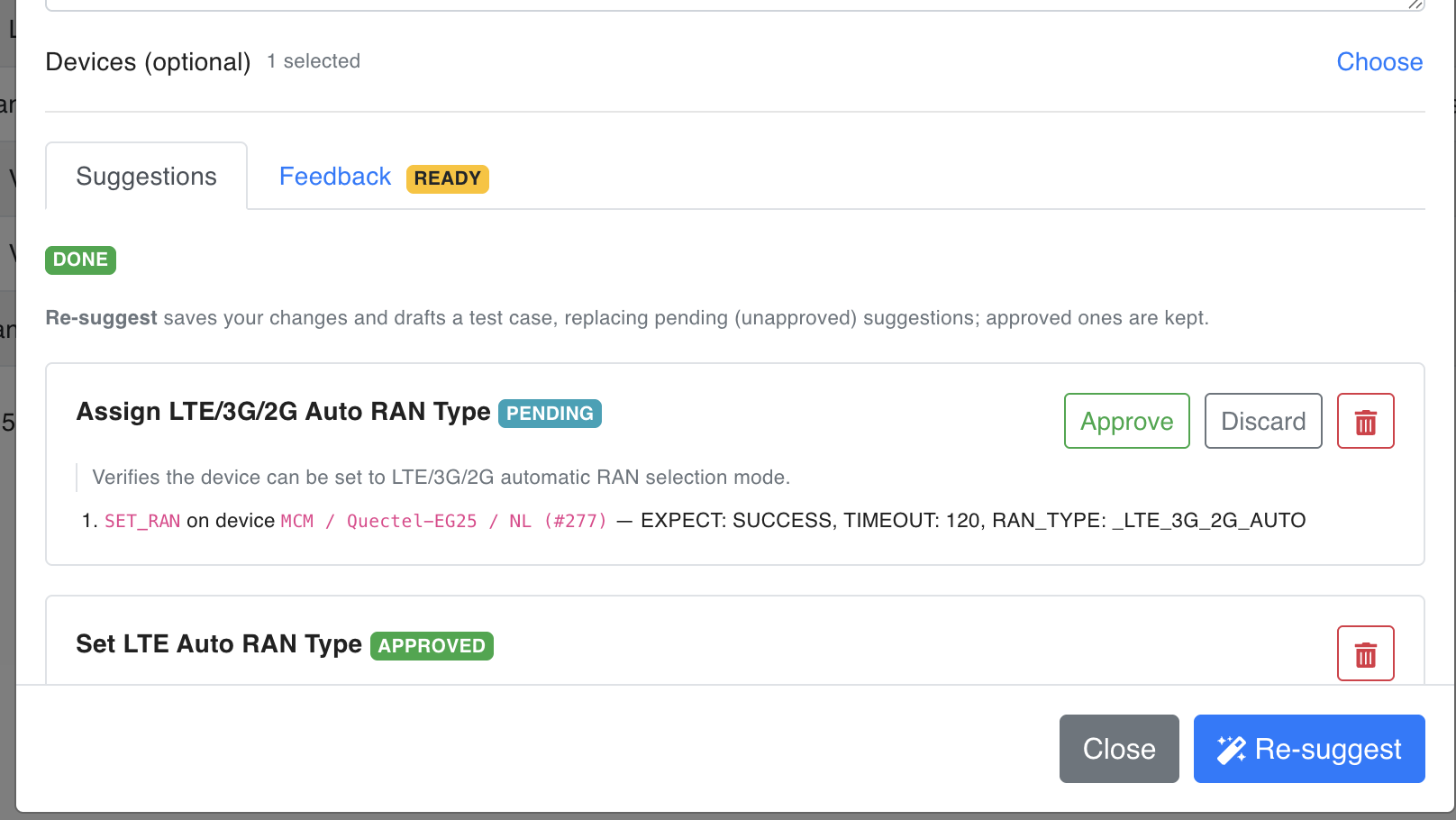
Approve it: because the test case already exists, the same test case is updated in place rather than duplicated. Run the test again to confirm the fix.
Mark done — and Reopen
When you are happy with the test and no longer need automatic feedback, press Mark done. Tracking continues on every run until you do.
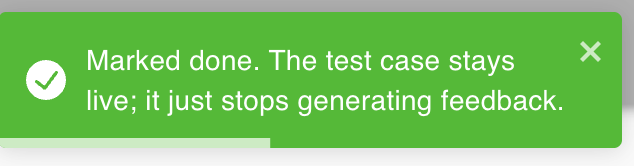
The test case remains live and scheduled — only feedback generation stops. Even if a future run fails, no new feedback is produced. In the list, the requirement is tagged Done.

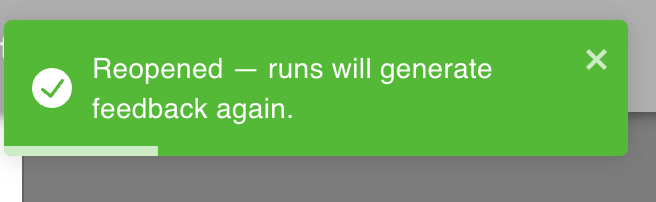
To bring monitoring back later, press Reopen. Feedback generation resumes and future runs produce verdicts again.
Note
Mark done and Reopen only control whether feedback is generated — the test case itself is always live and scheduled either way. Leave feedback on while you are still stabilising a new test case, and mark it done once the test behaves as intended.