Remote Mobile Access (RMA)
Remote Mobile Access lets you control a test device from the browser — drive the screen, read its live status, stream its logs, and for MCM modems send AT commands. It is the quickest way to see what a device is doing during a test run without physical access to it.
The page holds several devices side by side, so you can watch both ends of a call, or a phone and the modem it is talking to, in one view.
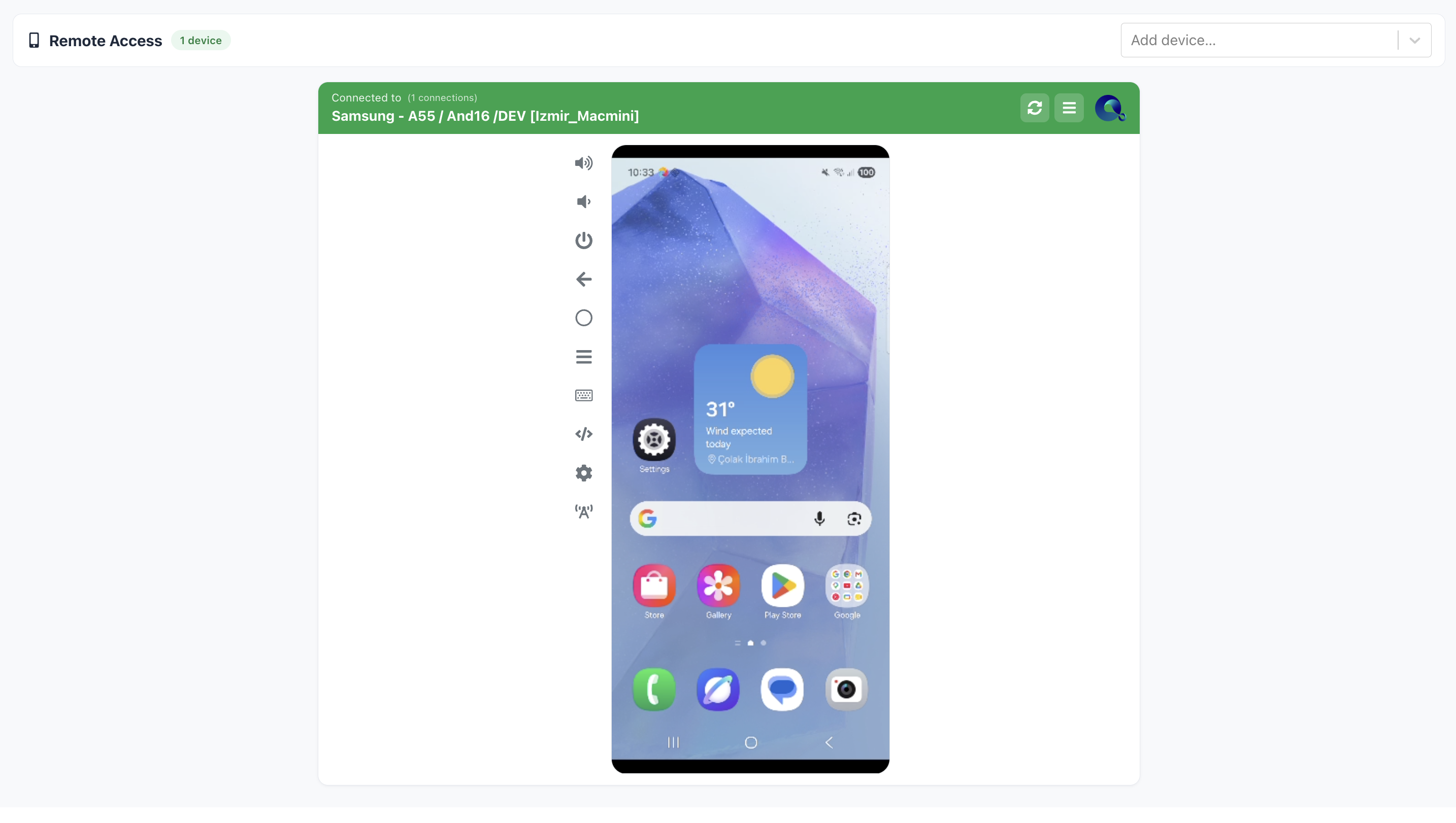
Opening Remote Access
Open the Mobile IDs page, tick the devices you want, then choose Remote Access from the actions menu. The menu item shows how many devices are selected — Remote Access (2) for two — and all of them open together.
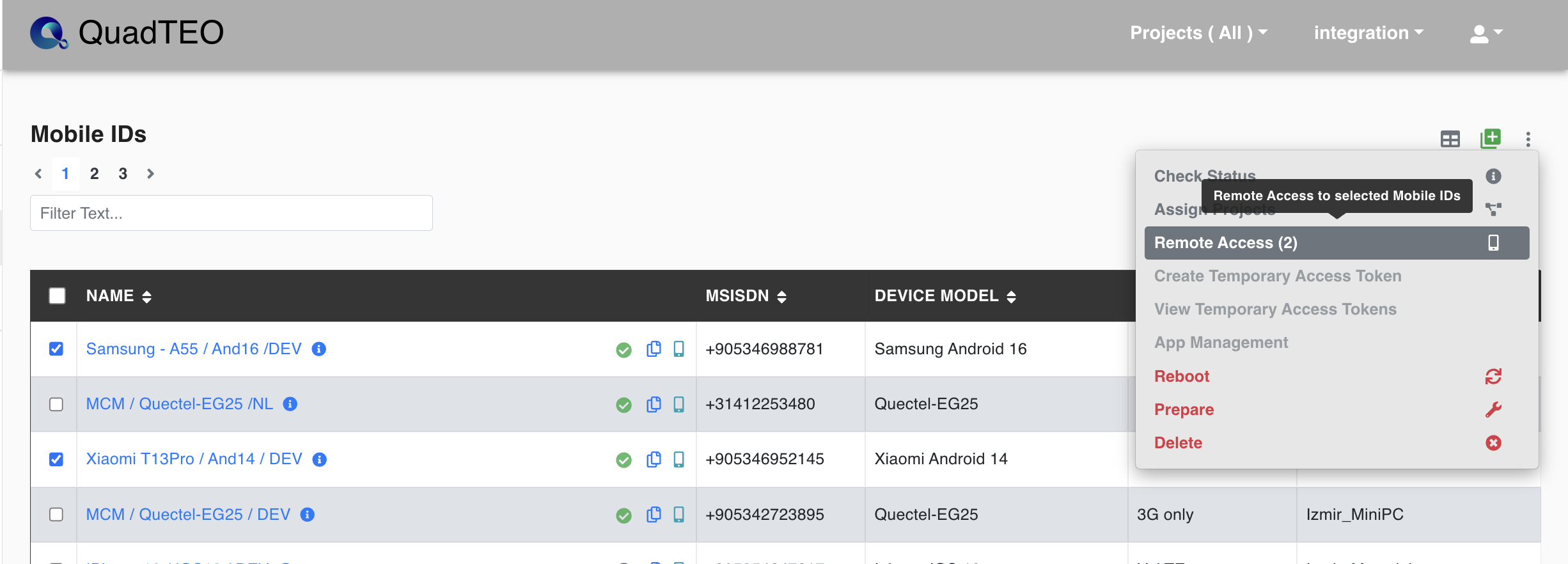
You can also open a single device with the phone button on its row.
Adding devices to an open session
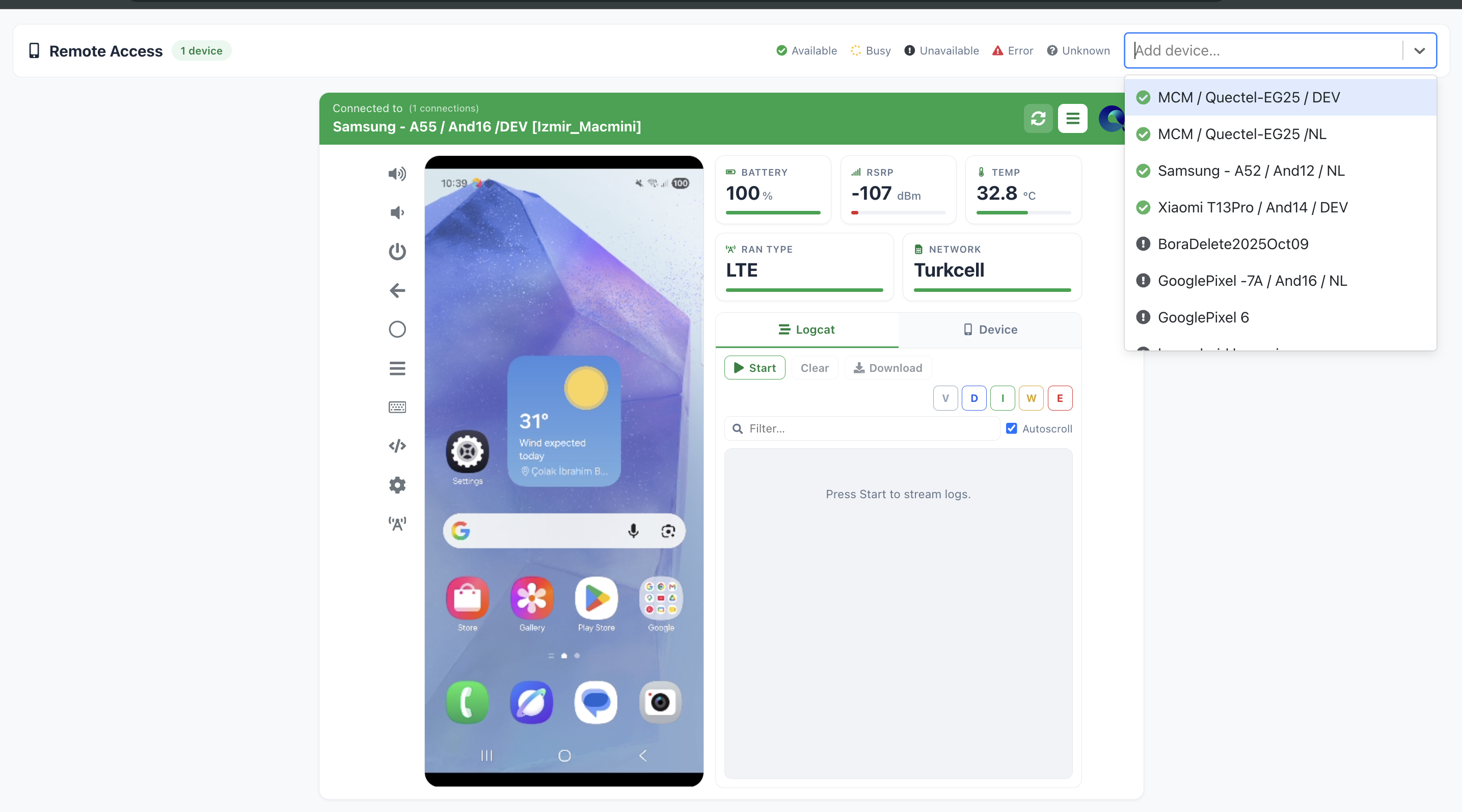
Use Add device… at the top-right to bring another device into the current session. The dropdown lists every device with an availability icon, and the legend above it explains them:
| Status | Meaning |
|---|---|
| Available | Ready to connect. |
| Busy | In use, for example by a running test. |
| Unavailable | Not reachable at the moment. |
| Error | The device reported a problem. |
| Unknown | State could not be determined. |
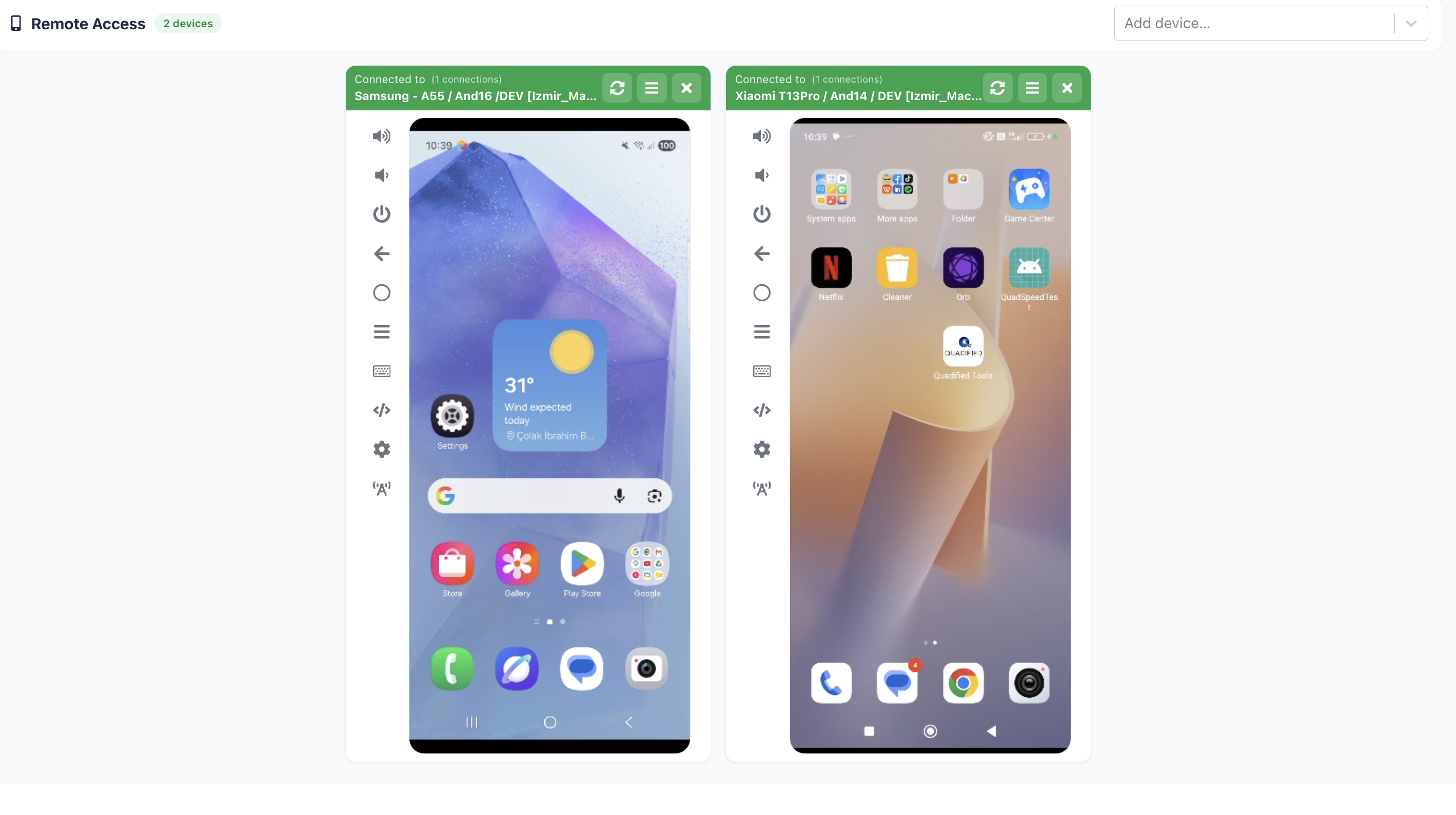
The counter next to the Remote Access title tracks how many devices are open. Each device sits in its own card, and the × in a card's header closes just that device.
The device card
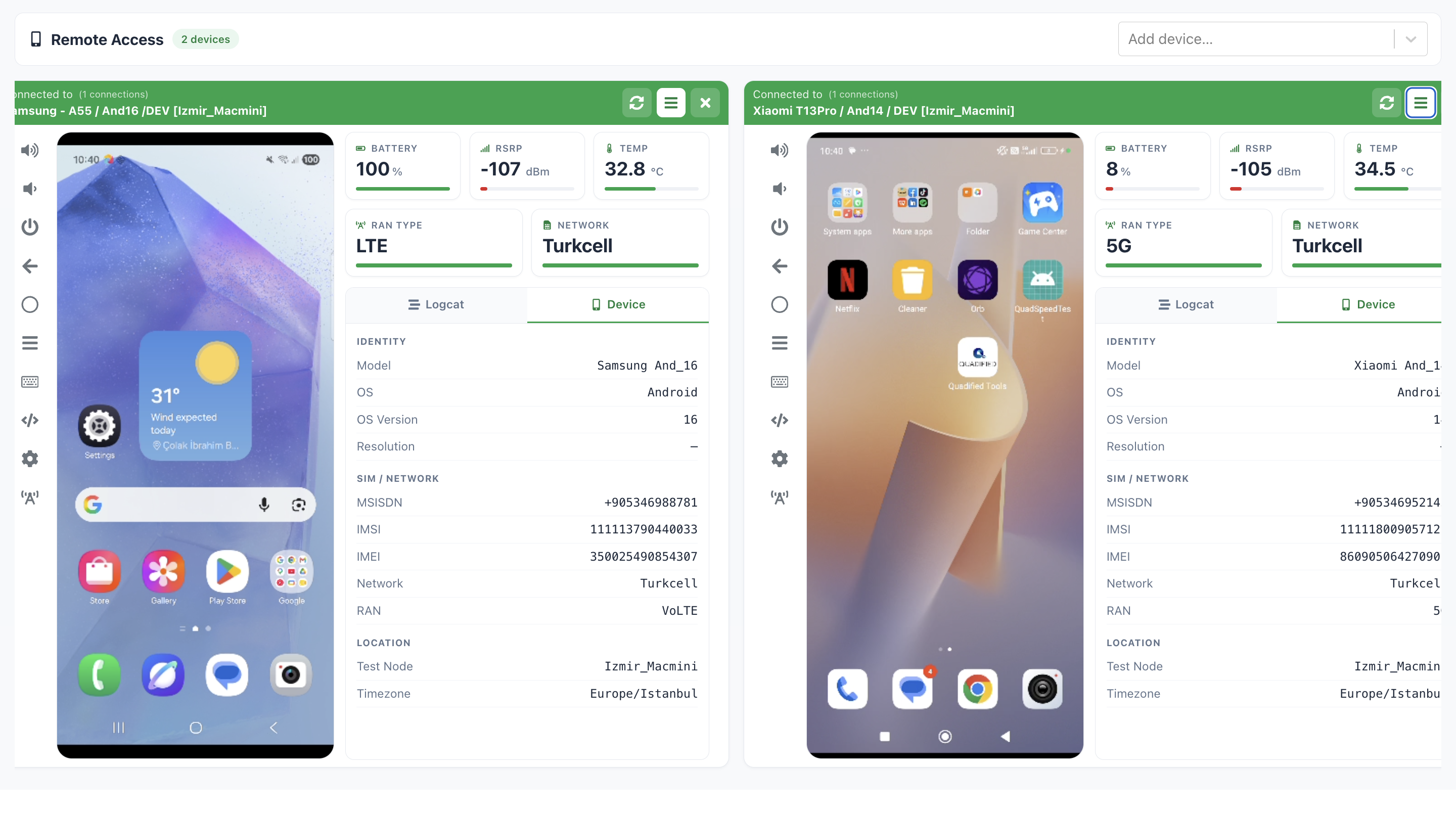
Every card has a green header showing the connection state, the device name and its test node. Three controls sit on the right:
| Control | What it does |
|---|---|
| Refresh | Renews the connection to the device — use it if the card stops responding. |
| Menu (☰) | Shows or hides the information panel. |
| × | Closes this device. |
With the panel hidden, the card shows just the phone screen and its control strip — useful when several devices are open at once. Click the menu icon to reveal the information panel beside the screen.

Controls beside the screen
You drive the screen directly with the mouse. The strip down the left side adds volume up and down, power, back, home, recent apps and keyboard input, plus two shortcuts that open apps on the device: the gear opens its Settings, and the radio antenna opens the radio activity app.
Live status tiles
The information panel opens with a row of tiles giving the device's current state at a glance: Battery, RSRP, Temp, RAN Type and Network.
Device tab
The Device tab lists the device's details in three groups:
- Identity — model, OS, OS version, resolution.
- SIM / Network — MSISDN, IMSI, IMEI, network, RAN.
- Location — test node and timezone.
Streaming logs
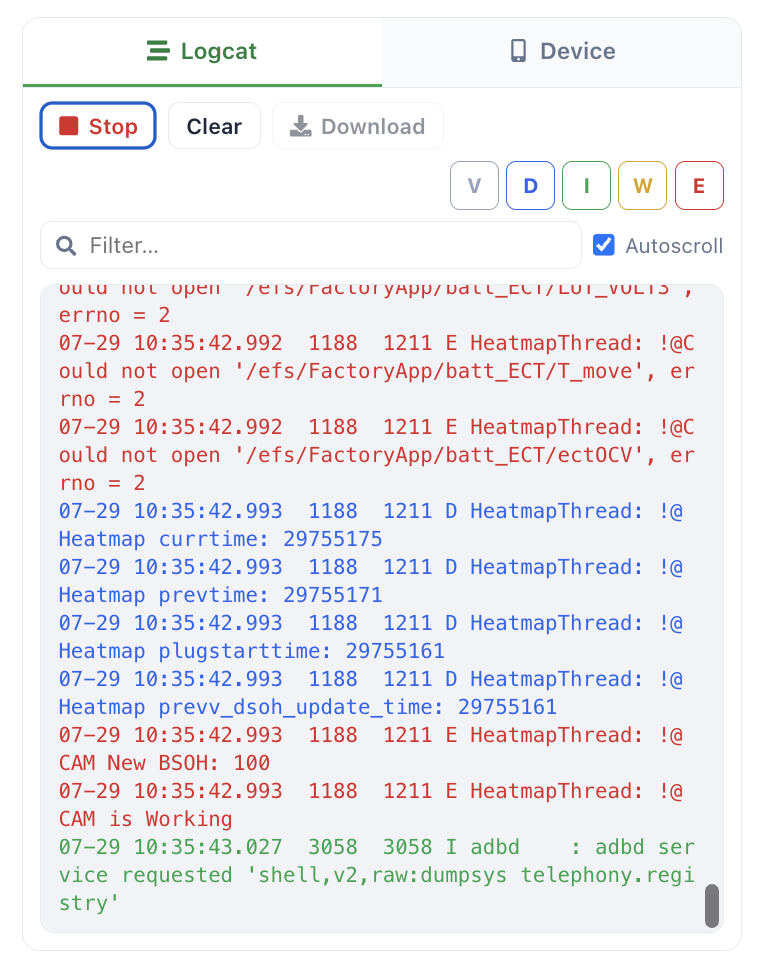
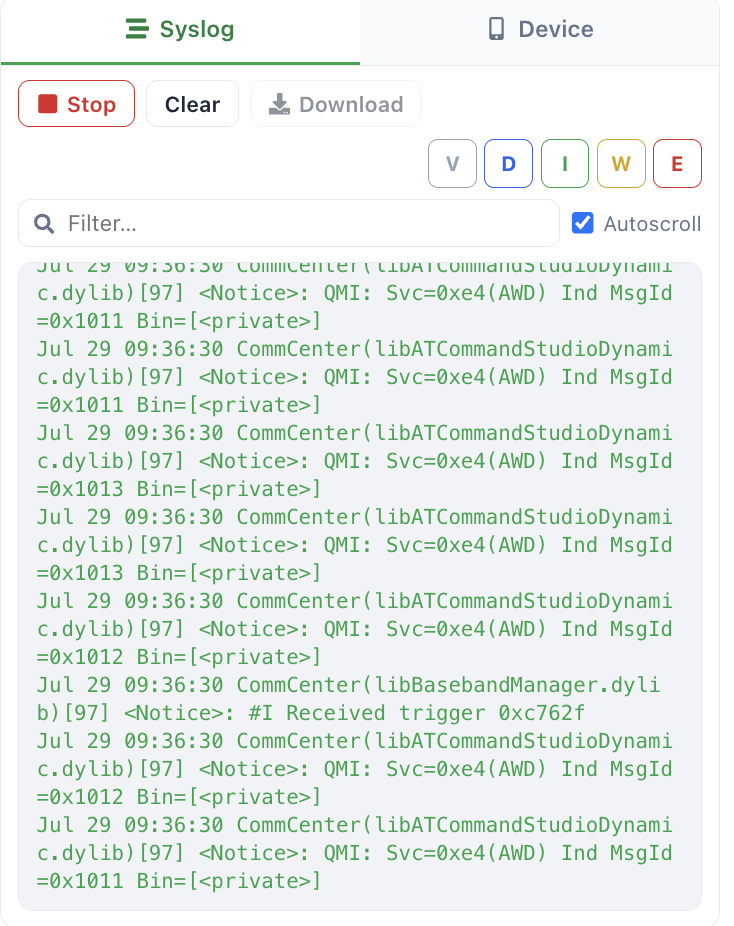
The information panel's first tab streams the device log live. It is called Logcat on Android and Syslog on iOS, and both work the same way.
Press Start to begin streaming and Stop to end it. Clear empties the view, and Download saves the collected log to a file.
Filter what you see with the severity buttons — V, D, I, W, E — and narrow further with the Filter… box. Leave Autoscroll ticked to follow the newest lines.
Working with several devices
Cards lay out side by side, each with its own panel, logs and controls. Information panels can be open on some cards and closed on others, so you can keep one device's details in view while watching another's screen.
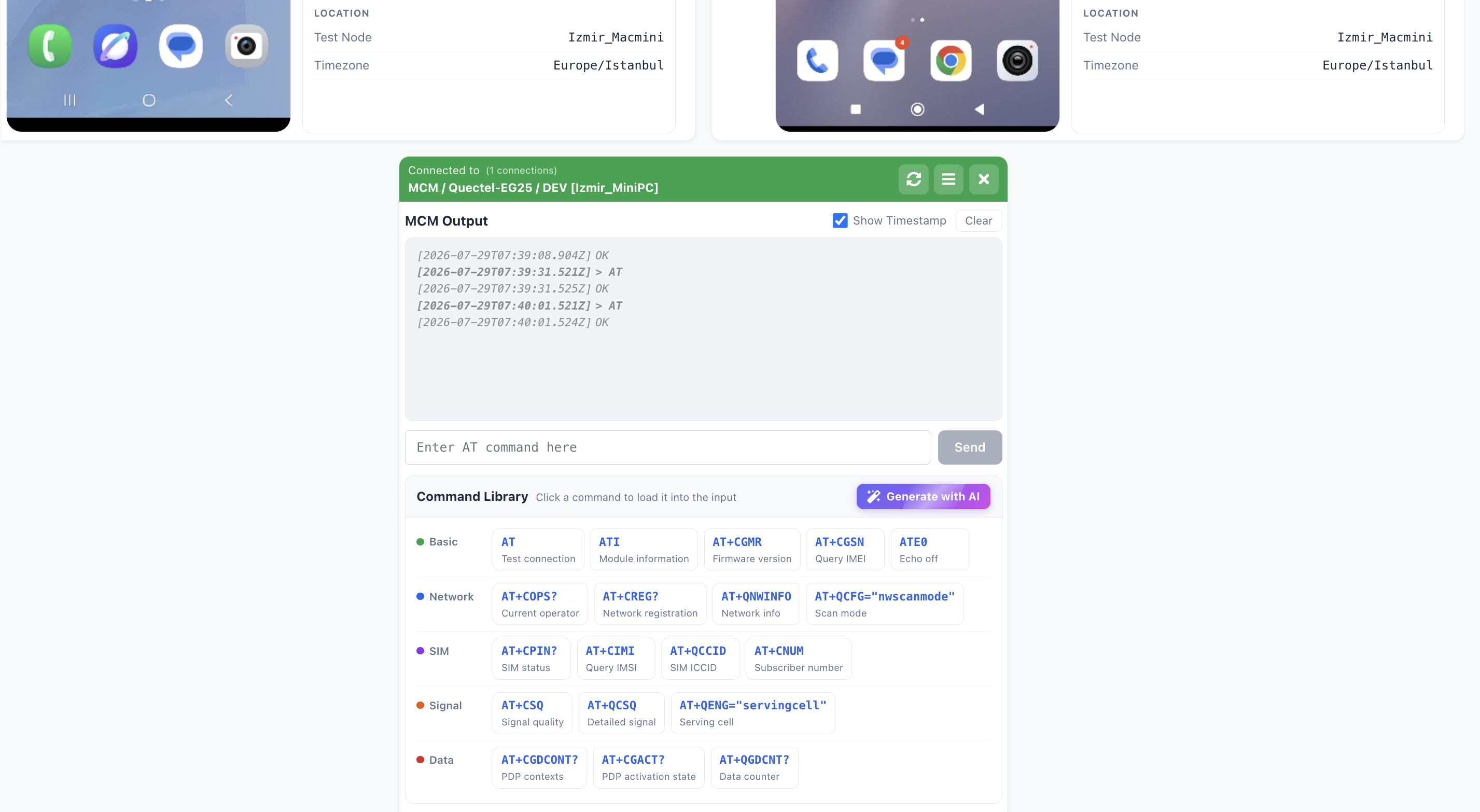
Phones and MCM modems can share a session — useful when a test involves a handset and a modem together.
MCM devices
For MCM (modem) devices the card carries an AT command console instead of a phone screen. See MCM Remote Access for the command library, the AI command generator, and trace collection.