MCM Remote Access
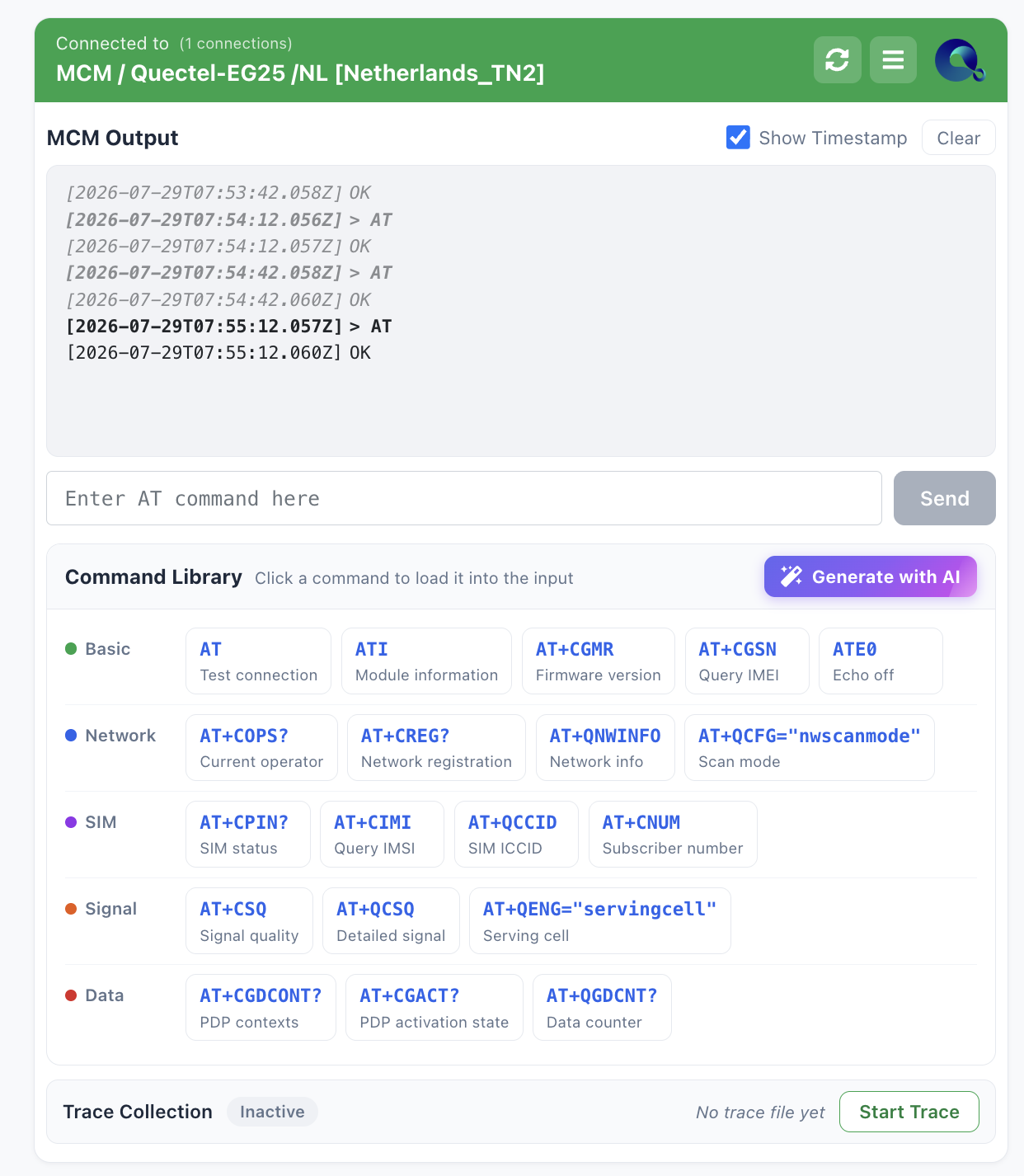
When Remote Mobile Access is opened for an MCM (modem) device, the card carries an AT command console instead of a phone screen: an output panel, a command input, a library of ready-made commands, an AI command generator, and trace collection controls.
MCM Output
MCM Output streams what the modem returns. Commands you send are shown in bold, followed by the modem's response.
- Tick Show Timestamp to prefix every line with the time it arrived.
- Clear empties the visible panel.
Sending AT commands
Type a command in Enter AT command here and press Send. The command and its response appear in the output panel.
Command Library
The Command Library holds ready-made AT commands so you do not have to remember the syntax. Click any command to load it into the input — it is not sent until you press Send, so you can edit it first.
Commands are grouped by purpose:
| Group | Commands |
|---|---|
| Basic | AT (test connection), ATI (module information), AT+CGMR (firmware version), AT+CGSN (query IMEI), ATE0 (echo off) |
| Network | AT+COPS? (current operator), AT+CREG? (network registration), AT+QNWINFO (network info), AT+QCFG="nwscanmode" (scan mode) |
| SIM | AT+CPIN? (SIM status), AT+CIMI (query IMSI), AT+QCCID (SIM ICCID), AT+CNUM (subscriber number) |
| Signal | AT+CSQ (signal quality), AT+QCSQ (detailed signal), AT+QENG="servingcell" (serving cell) |
| Data | AT+CGDCONT? (PDP contexts), AT+CGACT? (PDP activation state), AT+QGDCNT? (data counter) |
Generating commands with AI
If you know what you want the modem to do but not which command does it, press Generate with AI.
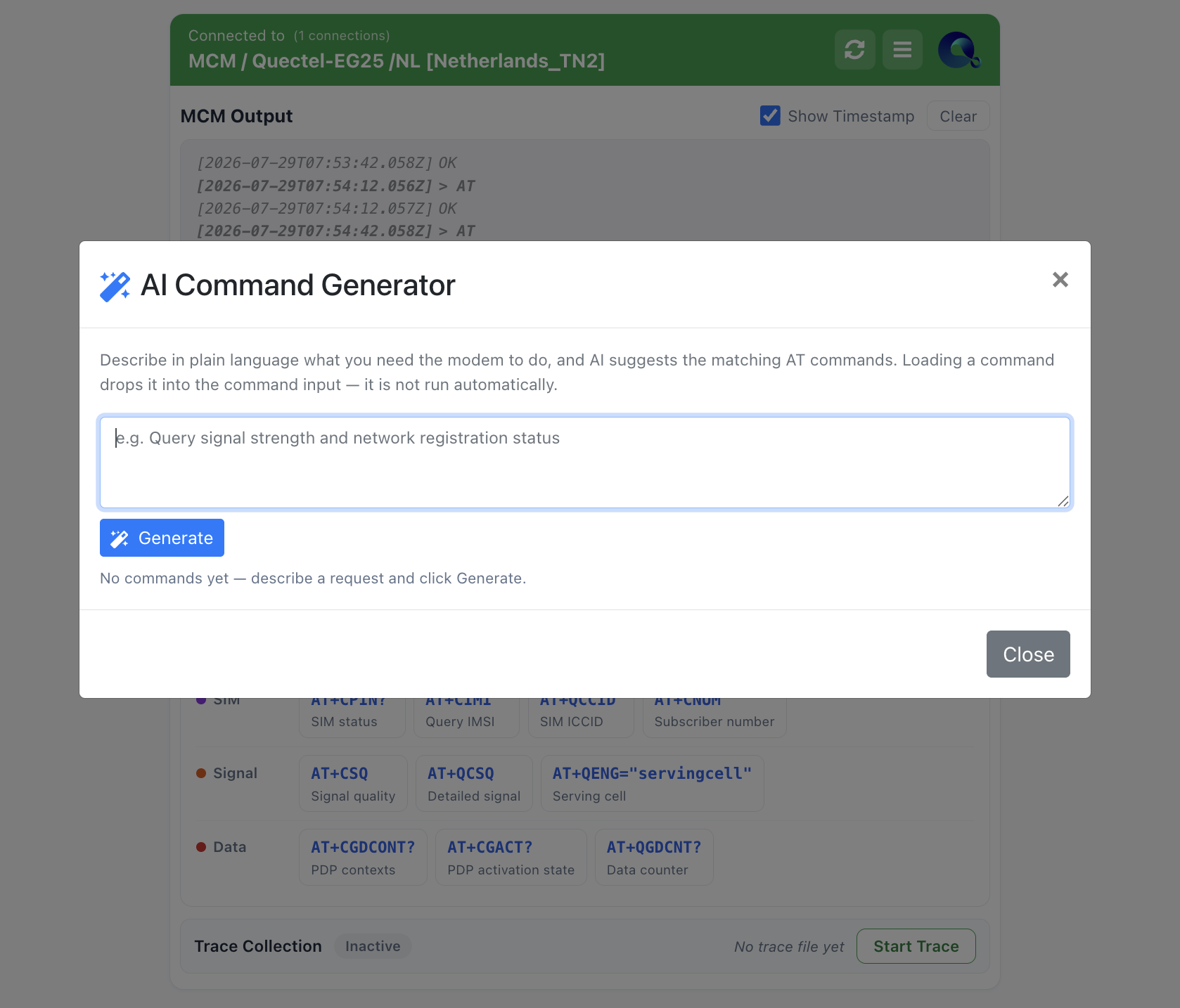
Describe the request in plain language — for example "Network registration status" — and press Generate. AI returns the matching AT commands, each with a one-line explanation of what it queries.
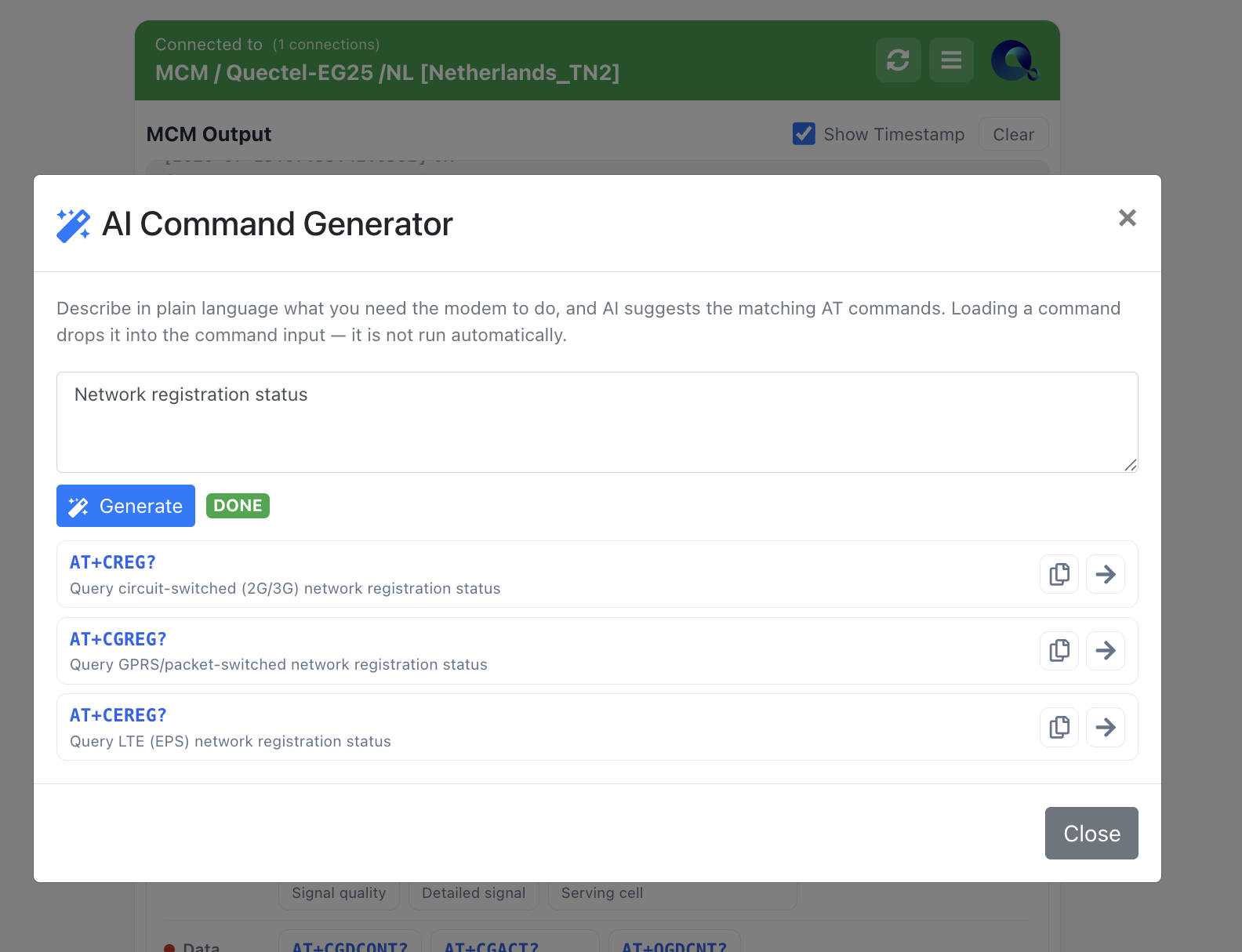
Every suggestion has two buttons: copy it to the clipboard, or load it into the command input with the arrow. Loading a command only fills the input — nothing is sent until you press Send.
Note
AI suggests commands, it does not run them. Review the command in the input before sending it, especially anything that changes modem configuration rather than just querying it.
Device information
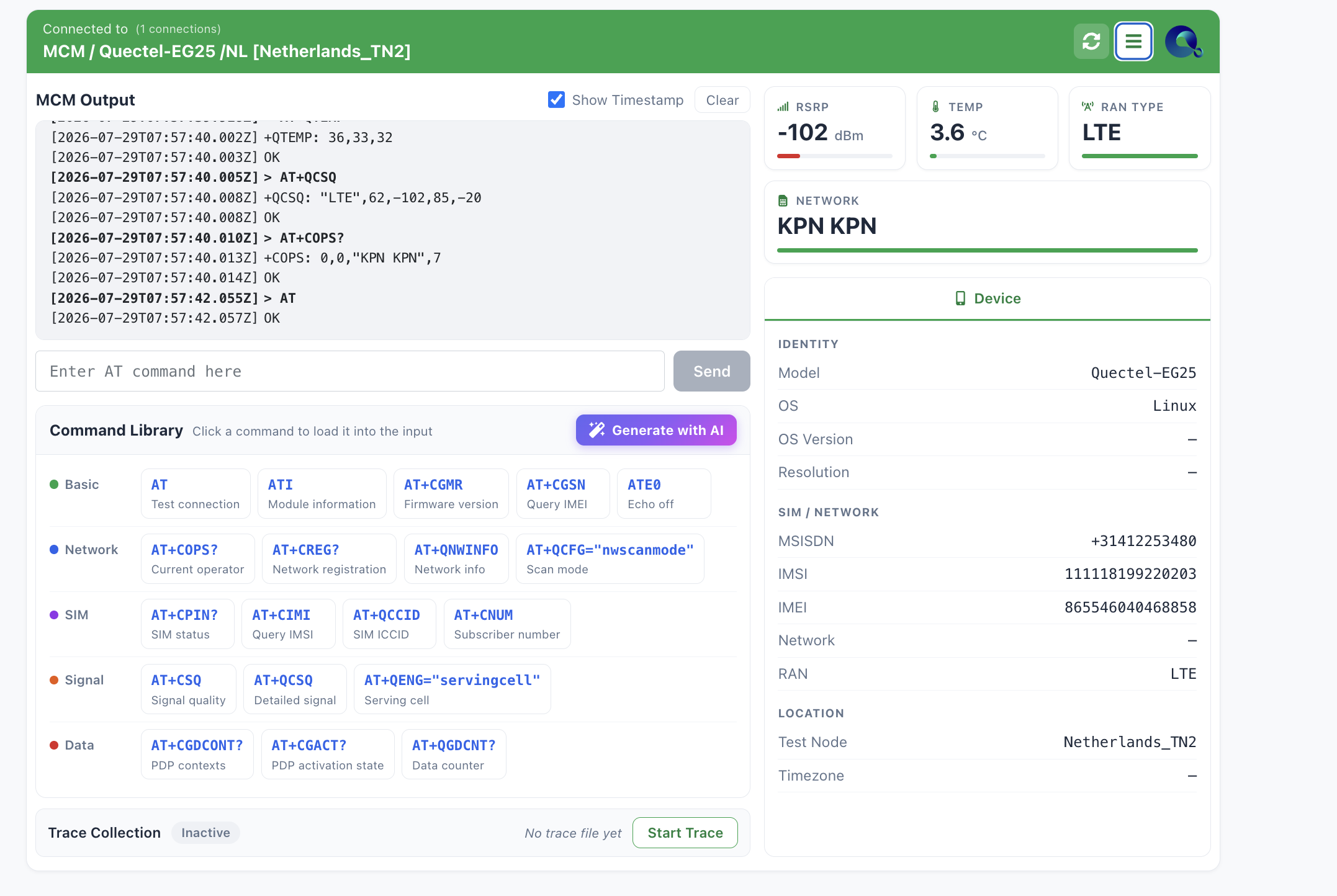
Click the menu (☰) icon in the card header to open the information panel. For an MCM it shows RSRP, Temp, RAN Type and Network tiles, and a Device tab with the modem's identity, SIM and location details. There is no log tab for MCM devices.
Trace Collection
Trace Collection at the bottom of the card captures a modem trace.
- The badge shows the current state, Active or Inactive.
- Start Trace begins collecting, Stop Trace ends it.
- When a trace is available it appears with its timestamp and a Download button. Until then the card reads No trace file yet.