Schedule Conflict Detection
When scheduled Test Suites would use the same device at the same time, they create a conflict. The platform detects these situations and highlights them in several places across the UI, so you can resolve them before they affect your runs.
Conflicts tab on the Dashboard
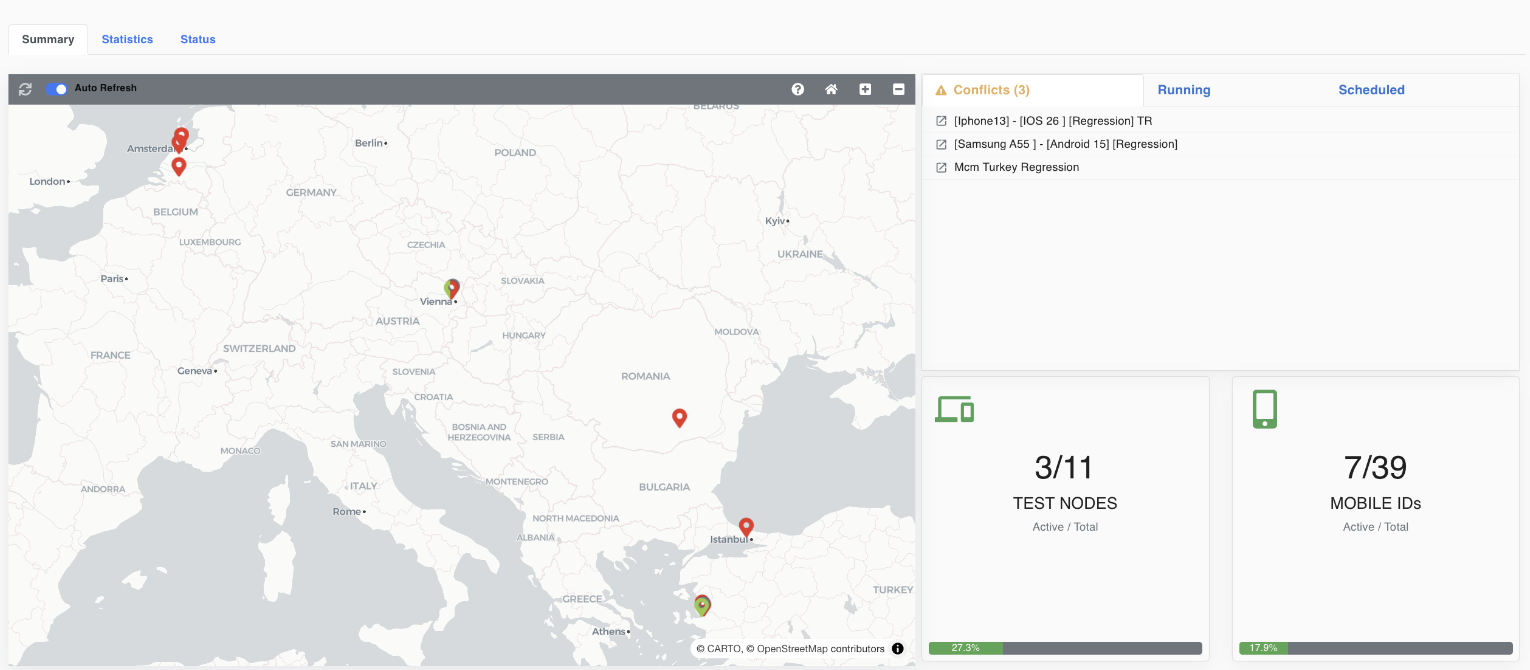
A Conflicts tab appears on the Dashboard — but only when there is at least one conflict. If everything is clear, the tab is hidden. When shown, it lists the Test Suites involved in the conflict.
Conflicts highlighted in the timeline
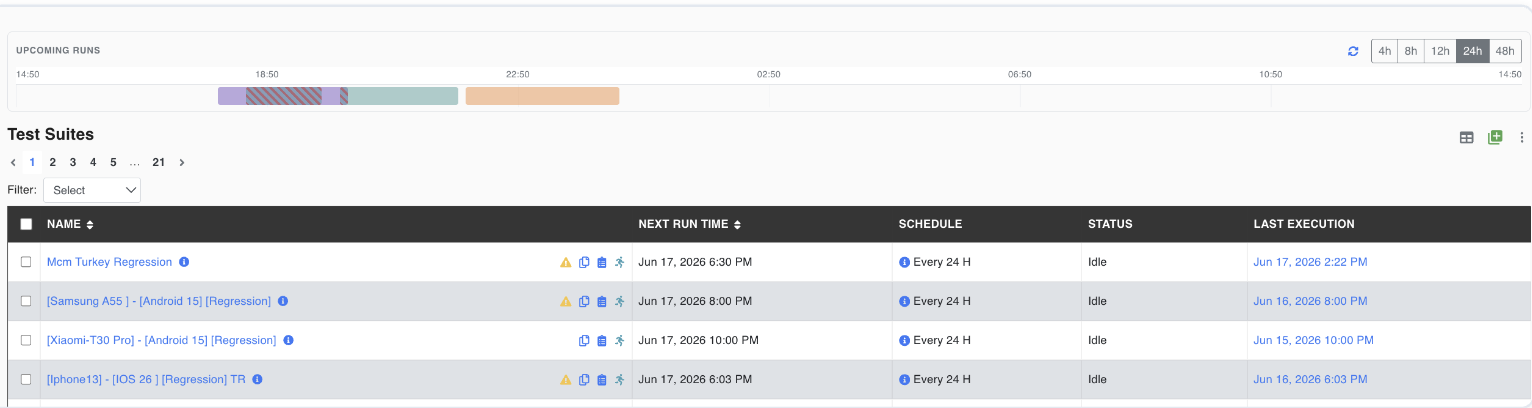
In the Upcoming Runs timeline, time slots where a conflict will occur are shown with a striped (hatched) pattern, so you can spot problem periods at a glance.
Warning icon on affected suites
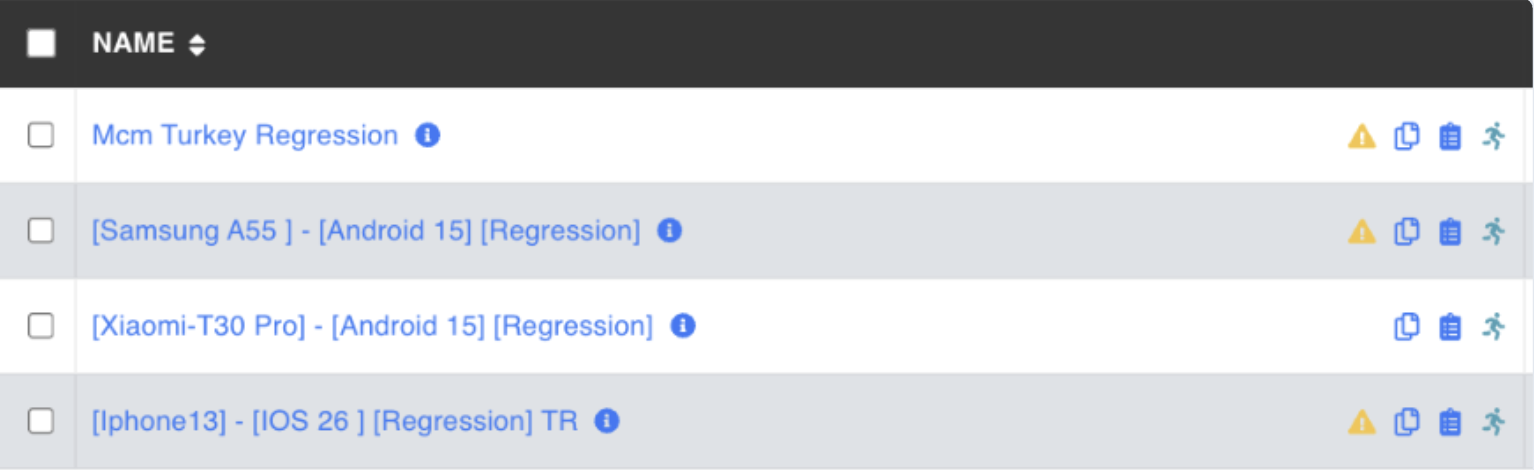
Test Suites that will be involved in a conflict show a warning icon next to their name in the list. Clicking the warning icon opens a small panel listing which Test Suite(s) it may conflict with.
Note
Conflicts are based on device usage. Adjusting the schedule, time window, or assigned device of one of the suites is usually enough to clear the conflict.
See also: Upcoming Runs Timeline.