Connectors: MCP
Preview
MCP connectors are in preview and are not enabled on every environment. When the MCP server is not enabled for you, Connectors has no MCP tab. Ask your Quadified contact whether it can be enabled.
An MCP connector lets an LLM agent, such as Claude Code or Codex CLI, author and run tests on the platform through its MCP server. The agent works as the person who created the connector, with that person's permissions and nothing administrative. Each connector has its own token, so you can see when it was last used and switch it off without affecting anything else.
What an agent can do
You ask in plain language and the agent calls the right TEO tools (see Tools).
| Area | What you can ask for |
|---|---|
| Test lab | Which Test Nodes and devices are online, busy or faulty, and which tests use a device |
| Test cases | Find a test case by name, read its steps, devices and trace filters |
| Test suites | Find a suite, see which test cases it runs and what is scheduled next |
| Running | Start a test case or a whole suite on your real devices, follow it, and re-run only the failures |
| Results | Read the results of any run, including scheduled ones, and save them to a file |
| Files and analysis | Get TEO's analysis of a failed run, step logs, screenshots, SIP logs and packet captures |
| Changing tests | Create, copy or change test cases and suites, and check them before saving |
| AI authoring | Describe a scenario in words, let TEO generate a draft test case, then approve or reject it (see AI Authoring) |
| Organising | Projects, tags, trace filters and the change history of a test, device or node |
The agent cannot do administrative work: it cannot manage users, set up Test Nodes or change platform settings. It cannot stop a running execution either; stop it from the Executions page.
Before you start
- Your own TEO account. The connector acts as the person who creates it, so each person creates their own. Do not share one connector between people.
- An MCP client: Claude Code or Codex CLI, installed and signed in.
- A terminal on the machine where the client runs (macOS, Linux or Windows).
The MCP tab
Open Connectors in the menu and select the MCP tab.
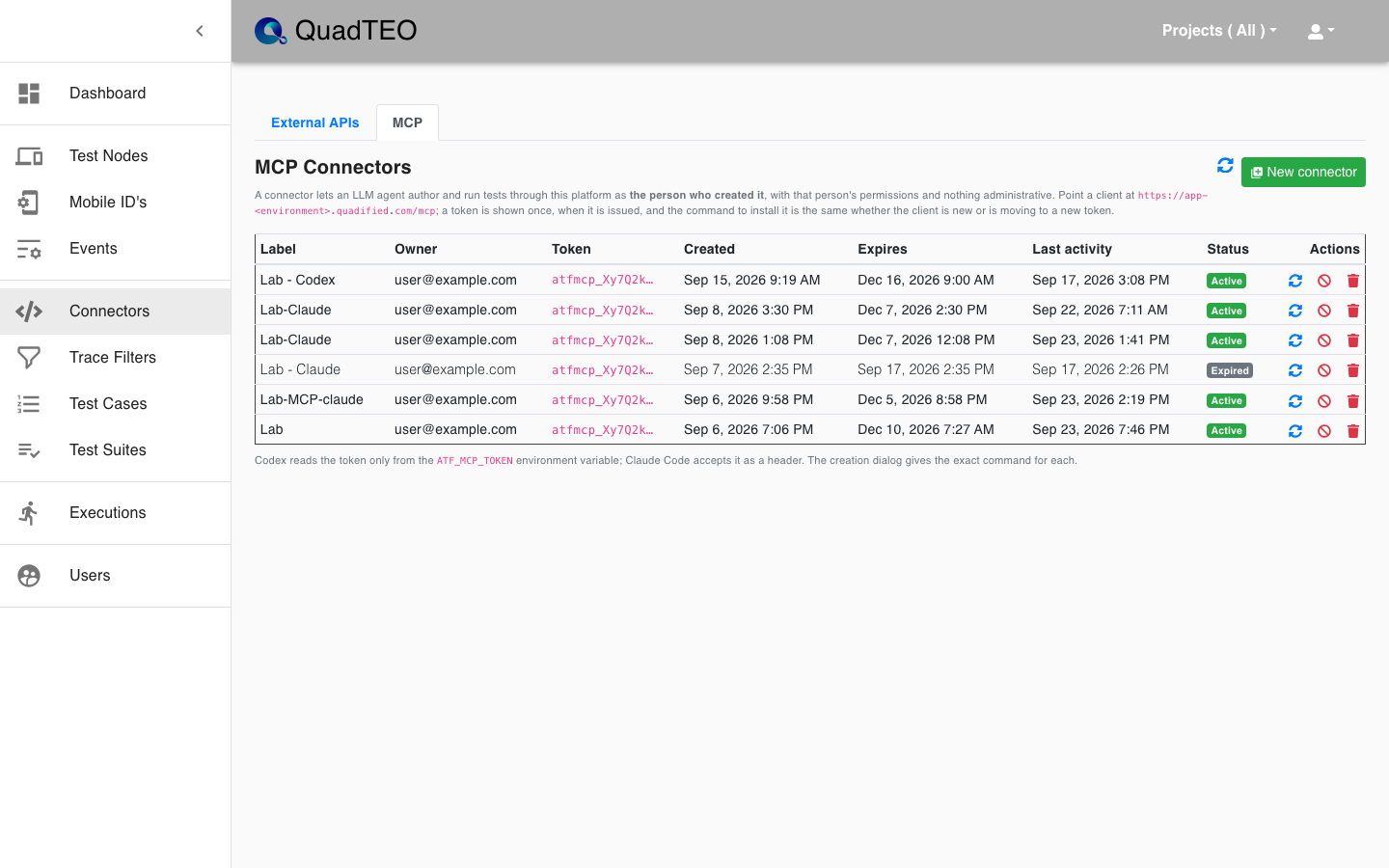
| Column | Meaning |
|---|---|
| Label | What the connector is for. |
| Owner | The user the agent works as. |
| Token | The first characters of the token, to tell connectors apart. The full token is shown only once, when it is issued. |
| Created / Expires | When the connector was created and when its token stops working. |
| Last activity | The last time an agent used the connector, accurate to a few minutes. |
| Status | Active, Expired (past its expiry date) or Revoked. |
| Actions | Issue a new token, Revoke and Delete (see below). |
Standard users see and manage the connectors they created. Admins see every connector of the tenant and can revoke or delete any of them, for example when a laptop is lost. Guest users cannot use connectors.
Creating a connector
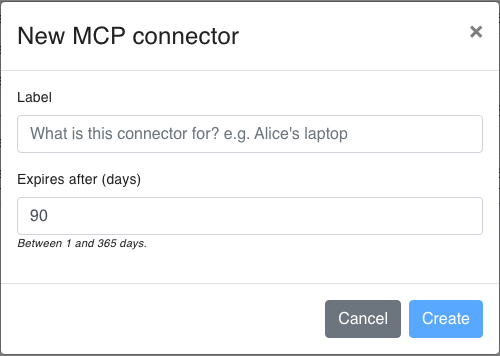
- Click New connector.
- Enter a Label that says what the connector is for, for example the machine it is used on.
- Set Expires after (days): between 1 and 365, 90 by default. Every connector expires.
- Click Create.
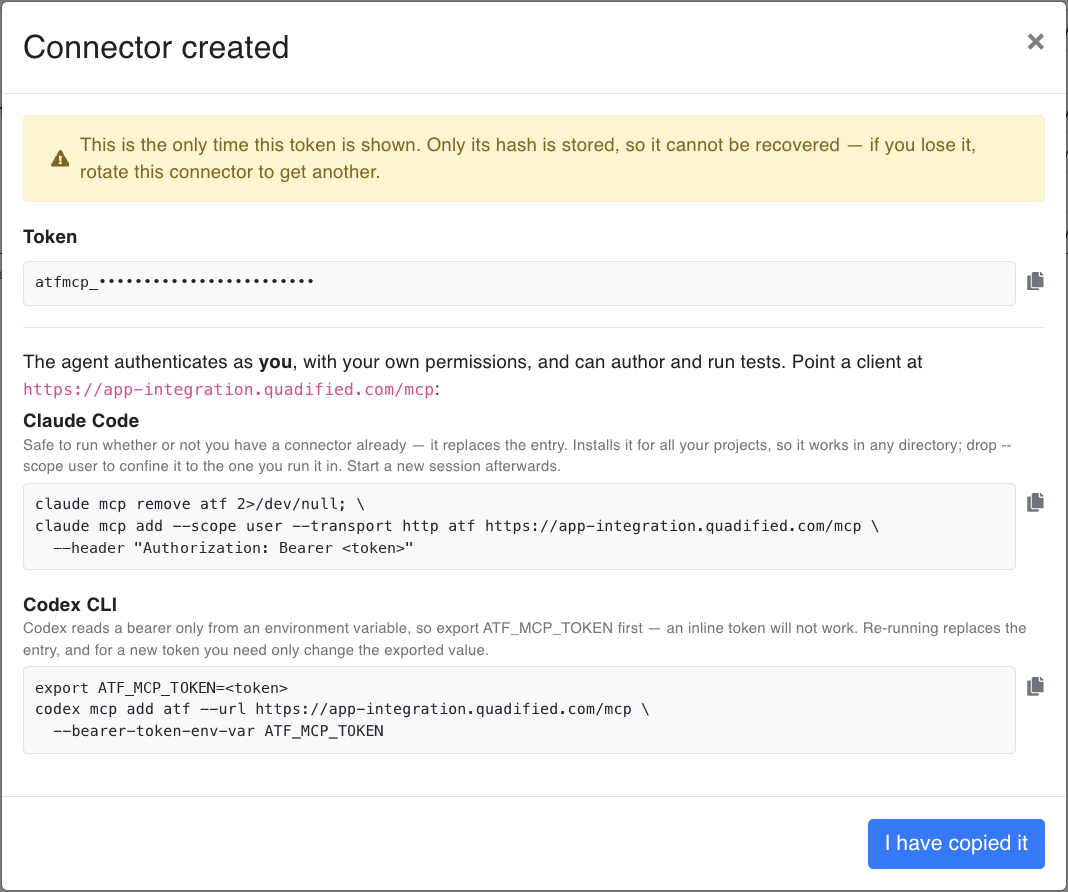
The Connector created window shows the token and a ready-made command for Claude Code and for Codex CLI, with a copy button beside each. This is the only time the token is shown: only its hash is stored, so it cannot be recovered. Copy what you need, then close the window with I have copied it. If you lose the token, issue a new one.
You can hold up to two active connectors (your environment may allow more); one connector can serve all your machines and both clients. At the limit, issue a new token for a connector you already use, or revoke or delete one you no longer need.
Connecting a client
The client connects to the MCP server at https://app-<environment>.quadified.com/mcp; the Connector created window (or New token issued, after a new token) shows the exact address for your environment. Run the command for your client with the token in place of <token>.
Claude Code
claude mcp remove atf 2>/dev/null; \
claude mcp add --scope user --transport http atf https://app-<environment>.quadified.com/mcp \
  --header "Authorization: Bearer <token>"
The command is safe to run whether or not the client already has a connector: it replaces the atf entry, so run it again after you get a new token. --scope user installs it for all your projects and keeps the token in Claude Code's own settings file (~/.claude.json); leave it out to limit the connector to the directory you run it in. On Windows, run the two claude mcp commands one after the other instead of on one line. Start a new Claude Code session afterwards.
Check it with claude mcp list: the atf line should say Connected. Inside a Claude Code session, /mcp shows the same and lists the tools.
Codex CLI
export ATF_MCP_TOKEN=<token>
codex mcp add atf --url https://app-<environment>.quadified.com/mcp \
  --bearer-token-env-var ATF_MCP_TOKEN
Codex reads the token only from an environment variable; a token written into the command does not work. export lasts only for the current terminal: add the export line to your shell profile (for example ~/.zshrc or ~/.bashrc) so that Codex finds the token in every new terminal. After a new token is issued, you only need to change the exported value; the codex mcp add entry can stay. Check it with codex mcp list, then start a new Codex session.
One token works in both Claude Code and Codex, on as many of your own machines as you like.
Checking the connection
Start with a read-only question. It touches no device and shows that the connector works:
List my TEO Test Nodes and tell me which devices are available right now.
The agent calls list_test_nodes and answers with each node and its devices. A device is AVAILABLE (free to run on), BUSY (in use), UNAVAILABLE (the platform is not hearing from it) or ERROR (the node reported it as faulty).
The first time the agent uses a tool, Claude Code and Codex ask you to approve it. Approve read-only tools freely; for tools that run tests or change them, read what the agent is about to do before you approve. The Last activity column on the MCP tab shows when the connector was last used.
Example prompts
Use your own test and device names: the agent finds the ids itself.
| What you want | Example prompt | What the agent does |
|---|---|---|
| Create a test case | "Create a test case named SMS A to B. Device A sends the SMS hello to device B, and B checks that it arrived within 60 seconds. Check it is valid before you save it." | get_function_catalog → validate_test_case → create_test_case. When the check fails it fixes the step and checks again before saving. |
| Put it in a suite | "Create a suite named SMS suite that runs this test case twice." | create_test_suite. The suite has no schedule until you set one in the Web UI. |
| Run and wait | "Check that both devices are available, then run SMS suite and tell me when it finishes." | list_test_nodes → run_test_suite → get_execution, polled until the run ends. For a single test case it uses run_test_case. |
| Analyse a result | "Did it pass? If not, tell me which step failed and why, and show me any screenshots or traces." | get_execution with logs → get_execution_analysis → list_execution_artifacts → get_attachment. |
| What can I run on? | "Which Test Nodes are online, and which devices are available right now?" | list_test_nodes |
| Which tests use a device? | "Which test cases run on device A?" | list_test_cases_using_device |
| Suites and schedule | "List our test suites with their status and last run, and tell me what is scheduled for the next 24 hours." | list_test_suites → list_upcoming_runs |
| Get the data out | "List every execution of the last month and save it as a CSV file with suite, start time, duration, executed and passed." | list_executions, then the agent writes the file on your machine. The same works for a Markdown or HTML report. |
| Re-run only failures | "Execution 12345 had two failures. Re-run only those and tell me whether they fail again." | rerun_execution → get_execution |
| Change someone else's test | "Copy SMS 1 as SMS 2 and swap the sender and receiver. Check it is valid before you save it." | clone_test_case → validate_test_case → update_test_case. The copy belongs to you, so you can change it even when you could not change the original. |
| Write a test from a description | "Create a requirement named SMS delivery A to B: A sends an SMS to B, and B receives it within 30 seconds. Show me the draft before you approve it." | create_requirement → get_requirement (while TEO writes the draft) → list_suggestions → approve_suggestion or discard_suggestion. Describe what should happen and on which devices; do not write the steps yourself. |
| Clean up | "Delete the suite and the test case you created for this, including the run." | delete_test_suite → delete_test_case. Deleting a suite that has runs is refused until you confirm, because the runs, their results and analyses are deleted with it. You can delete only your own test cases and suites, and it cannot be undone. |
Files such as screenshots, SIP logs, packet captures and audio recordings come back with a download link that is valid for 15 minutes. Screenshots and SIP logs come back so the agent can read them; packet captures come back as a link only, to open in a tool such as Wireshark.
Issuing a new token
Click the blue arrows (Issue a new token, keeping this connector) and confirm. The current token stops working at once; the connector keeps its label, owner and history. The New token issued window shows the new token and the commands once, exactly as when the connector was created: run the command again on the client. Issuing a new token does not count towards the connector limit. A revoked connector cannot get a new token; create a new connector instead.
Revoking a connector
Click the red circle (Revoke, keeping the record) and confirm. Any agent using the connector stops working immediately, and the token cannot be reinstated. The connector stays in the list as Revoked, as a record that it existed.
Deleting a connector
Click the bin (Delete, record and all) and confirm. The connector is removed from the list. Deleting an active connector also stops its token at once and, unlike revoking, leaves no record.
Keep the token secret
Anyone who has the token can author and run tests as you. Keep it only in the MCP client's configuration: never paste it into a test case, a chat or a repository. Claude Code's --scope project writes it to .mcp.json, which is usually checked in, so do not use that scope. If a token may have leaked, issue a new token or revoke the connector straight away.
The same tasks are available through the MCP Connectors API.
Tools
The agent picks the tools from your prompt; you never call them by hand. In Claude Code they appear as mcp__atf__<tool name>, and /mcp shows the current list.
Lab and devices
| Tool | What it does | Effect |
|---|---|---|
list_test_nodes |
Test Nodes and their devices, with each device's live state | Read only |
list_mobile_devices |
Devices with phone number, platform, model and projects | Read only |
list_test_cases_using_device |
Test cases that run on one device | Read only |
get_mobile_device_status |
Live check of one device (automation and node view) | Holds the device briefly |
Test cases
| Tool | What it does | Effect |
|---|---|---|
list_test_cases |
Find test cases by name or description | Read only |
get_test_case |
One test case with its steps, devices and trace filters | Read only |
get_function_catalog |
Every test step function and its parameters | Read only |
validate_test_case |
Checks a test case or a change without saving it | Read only |
create_test_case |
Creates a test case from steps you describe | Changes data |
clone_test_case |
Copies a test case into a new one you own | Changes data |
update_test_case |
Changes the name, steps, tags, notes or trace filters of your own test case | Changes data |
delete_test_case |
Deletes your own test case and its runs | Deletes data |
Test suites and schedule
| Tool | What it does | Effect |
|---|---|---|
list_test_suites |
Find test suites by name or description | Read only |
get_test_suite |
One suite: its test cases in order, devices and schedule | Read only |
list_upcoming_runs |
Scheduled runs due in the next few hours | Read only |
create_test_suite |
Creates a suite from existing test cases | Changes data |
update_test_suite |
Renames, reorders, retags, enables or disables your own suite | Changes data |
delete_test_suite |
Deletes your own suite and all of its runs; asks for a second confirmation | Deletes data |
Runs and results
| Tool | What it does | Effect |
|---|---|---|
run_test_case |
Starts one test case on real devices | Runs on devices |
run_test_suite |
Starts a whole suite on real devices | Runs on devices |
rerun_execution |
Runs again only the test cases that failed in a past run | Runs on devices |
list_executions |
Past and running executions, newest first | Read only |
get_execution |
One execution with a result per test case; step logs on request | Read only |
get_execution_analysis |
TEO's AI analysis of why a finished run failed | Read only |
list_execution_artifacts |
Files a run produced: screenshots, packet captures, audio, SIP log | Read only |
get_attachment |
One of those files, with a link valid for 15 minutes | Read only |
get_screenshot |
A screenshot a test step took | Read only |
AI authoring
| Tool | What it does | Effect |
|---|---|---|
create_requirement |
Describes a scenario so TEO generates a draft test case | Changes data |
list_requirements |
Requirements and whether a draft is waiting | Read only |
get_requirement |
One requirement and the state of its draft | Read only |
list_suggestions |
The drafts generated for a requirement | Read only |
approve_suggestion |
Turns a draft into a real test case | Changes data |
discard_suggestion |
Rejects a draft | Changes data |
regenerate_suggestion |
Generates a new draft for a requirement | Changes data |
Organising and history
| Tool | What it does | Effect |
|---|---|---|
list_projects |
Projects that group tests, suites, nodes and devices | Read only |
list_tags |
Tags already in use, so new ones are spelled the same | Read only |
list_trace_filters |
Named MCM and XML trace filters | Read only |
get_changelog |
Who changed a test case, device or node, and when | Read only |
set_projects |
Puts a test case, suite, node, device or trace filter into projects; replaces the whole set | Changes data |
Troubleshooting
Most problems come from the token or from a session started before the connector was added.
| What you see | Likely cause | What to do |
|---|---|---|
atf fails to connect, or 401 Unauthorized |
The token is mistyped, expired, revoked or replaced by a new token | Check the status on the MCP tab. Issue a new token (or create a new connector if it is revoked) and run the setup command again. |
| "This endpoint requires an ATF MCP connector token" | The client sends a token that is not a connector token | Use the atfmcp_ token from the MCP tab, not your web login. |
| The TEO tools do not show up | The session started before the connector was added, or it was added without --scope user in another folder |
Start a new session. Run claude mcp list in the folder you work in. |
| Codex cannot authenticate | ATF_MCP_TOKEN is not set in that terminal |
Export it again, or add it to your shell profile. |
| Creating a connector says you are at the limit | You already hold the maximum number of active connectors | Issue a new token for one you have, or revoke one. |
| A run is refused | A device is busy, or the environment is running as many suites as it allows | Ask the agent which devices are free and try again later. |
| The result says the devices failed to initialise | A device or Test Node problem, not a test verdict | Check the device and node state; contact Quadified if it persists. |
| The agent cannot change a test case | The test case belongs to someone else | Ask the agent to copy it and change the copy. |
| No failure analysis for a run | Not every run has one, and it takes a few minutes after the run ends | Ask again a few minutes later, or read the step logs. |
| A generated draft comes back empty | The scenario was unclear, or no matching device is online | Reword the scenario, or name different devices. If the agent reports VALIDATION_REJECTED, tell Quadified. |
If the connector still does not work, contact Quadified support with the connector's label, the time of the error and the exact message. Never send the token itself.