Export Test Case
The Export Test Case feature allows you to export the details of a test case in JSON format. This is useful for backing up test cases, sharing them with others, or importing them into another system.
Exporting a Test Case
To export a test case, follow these steps:
- Select a Test Case: Choose the test case that you want to export.
- Open the Action Dropdown: Click on the Action dropdown menu.
- Select "Export": Choose the "Export" option from the dropdown.

Once you select "Export", a JSON file containing the details of the test case will be downloaded to your computer. This JSON file includes all the information about the test case, such as its steps, parameters, and configurations.
JSON Format Details
The exported JSON file contains the following details of the test case:
- id: The unique identifier of the test case.
- name: The name of the test case.
- description: A description of the test case.
- testStepList: A list of steps in the test case, including the function, parameters, and expected outcomes.
- tags: Tags associated with the test case.
- disableReason: The reason for disabling the test case, if applicable.
- notes: Additional notes about the test case.
- disabled: A flag indicating whether the test case is disabled.
- traceFilters: Filters applied to trace the test case.
- sipTraceFilters: SIP trace filters applied to the test case.
- projects: Projects associated with the test case.
- devices: Devices associated with the test case.
Example JSON
Below is an example of the JSON format for an exported test case:
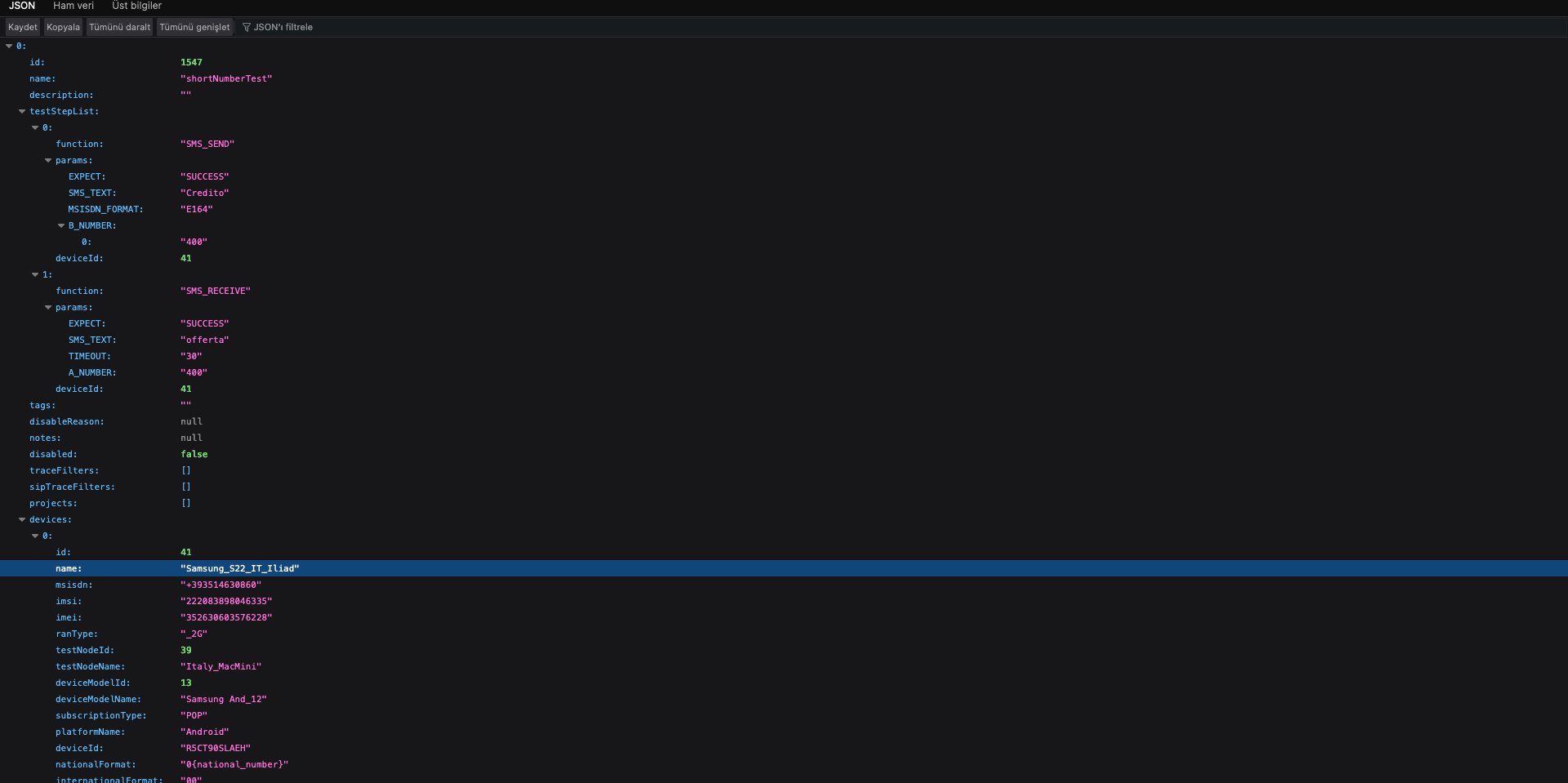
As seen in the example, the JSON file contains detailed information about the test case, including the functions used (SMS_SEND and SMS_RECEIVE), the parameters for each function, and the associated device details.
By exporting test cases in JSON format, you can easily manage and share your test scenario