Change History
The Change History feature allows you to view the modifications made to a test case. This feature is accessible via the Action dropdown menu by selecting "History". The change history provides details on what changes were made, who made them, and when they were made. If there are no changes, a message indicating this will be displayed.
Viewing Change History
To view the change history of a test case, follow these steps:
- Select a Test Case: Choose the test case for which you want to view the change history.
- Open the Action Dropdown: Click on the Action dropdown menu.
- Select "History": Choose the "History" option from the dropdown.
Change History Details
When there are changes recorded for the selected test case, the change history dialog will display the following information:
- What was Changed: The specific details of the changes, such as the name, device ID, notes, etc.
- Who Made the Changes: The email address of the person who made the changes.
- When the Changes Were Made: The date and time when the changes were made.
Example
In the example below, you can see the changes made to the test case Quadified_eSIM_test_iPhone_XR_QR:
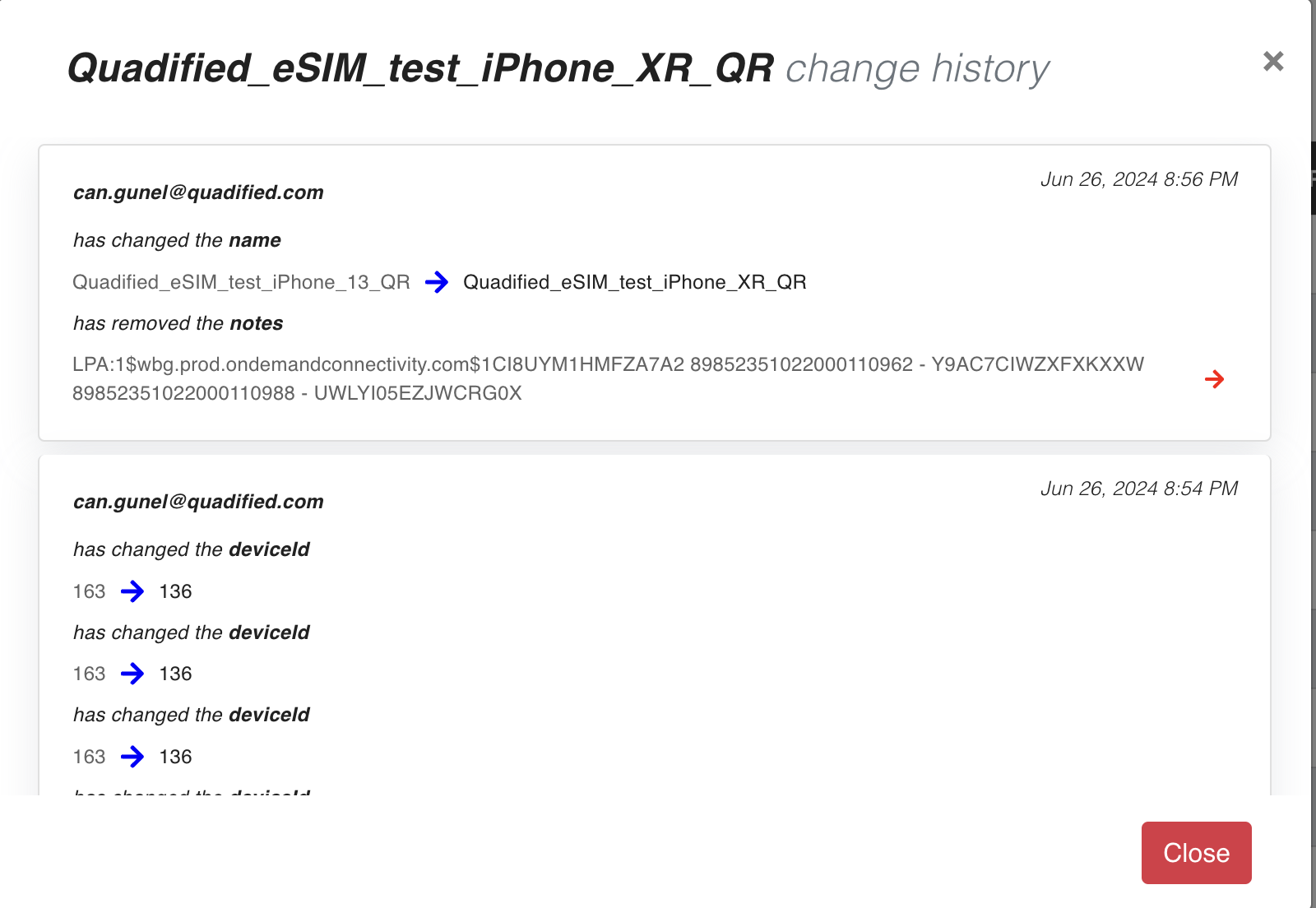
- The name was changed from
Quadified_eSIM_test_iPhone_13_QRtoQuadified_eSIM_test_iPhone_XR_QR. - The notes were removed.
- The device ID was changed from
163to136.
Each change is timestamped and attributed to the user who made the modification.
No Changes Found
If there are no changes recorded for the selected test case, the dialog will display a message indicating that there are no changes:
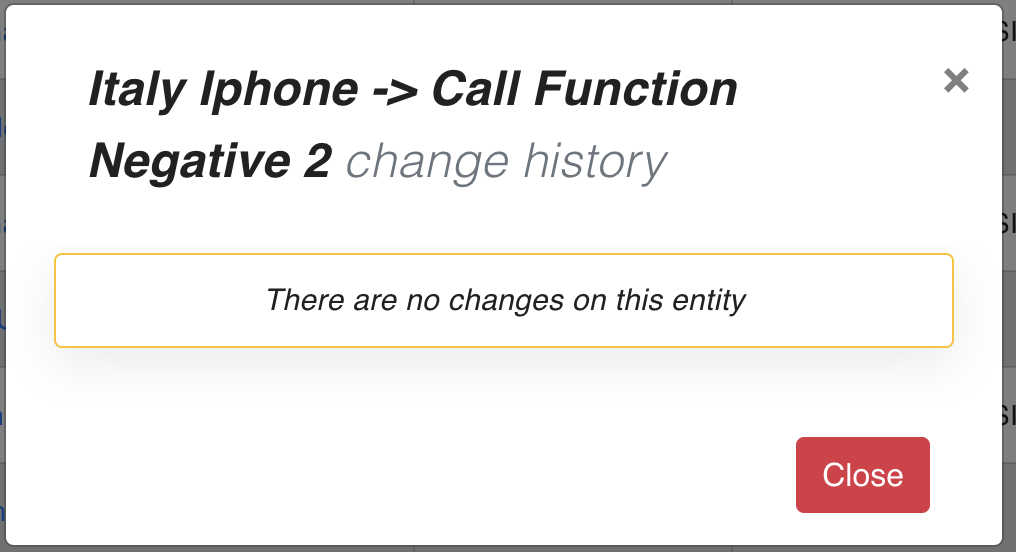
This ensures that you are aware that no modifications have been made to the test case since its creation or last recorded change.